

App store keywords are the words and phrases users search for when looking for an app, and keyword optimization aligns your listing with them. You research relevant keywords, place them where each store uses them to evaluate relevance, and measure results over time. It is a core part of App Store Optimization (ASO), where the app store optimization keywords you choose decide which searches your app can appear for.
The goal is to appear when users search for what your app does, not to add as many words as possible. A language-learning app, for example, should target phrases like “learn Spanish for travel,” not only its brand name. A well-matched keyword attracts users with clear intent. An irrelevant one may increase visibility but rarely produces meaningful installs. Building a strong keyword foundation early improves relevance, conversion performance, and the quality of users you attract over time.
This guide walks you through seven steps, from understanding store mechanics to building an ongoing optimization process:
- Understand how each store discovers apps
- Build a keyword research system
- Select keywords by relevance and opportunity
- Optimize App Store and Google Play metadata
- Adapt keywords by growth stage
- Localize keywords for new markets
- Track results and iterate
Each step builds on the previous one, so follow them in order the first time through.
Key Takeaways
- Apple App Store and Google Play use different keyword discovery systems.
- Keyword selection requires balancing relevance, demand, and ranking opportunity.
- Apple App Store keywords go in dedicated metadata fields; Google Play evaluates the whole listing.
- Successful keyword strategies change as apps move from launch to growth.
- Keyword optimization requires testing, measurement, and iteration.
Step 1: Understand How Each Store Discovers Apps
Before you choose any keyword, you need to know where each store looks for it. Because the two stores organize discovery differently, the same keyword list rarely performs equally well in both. Step 1 explains how.
The Metadata Fields Apple Reads
Apple lists the app name, subtitle, and keyword field as developer-controlled search fields. Together, they give you three places to signal relevance.
The app name and subtitle are visible, so they carry your most important terms and must still read well. The keyword field is never shown to users, so it holds supporting terms that would look awkward on the page. Separate terms with commas and no spaces after the commas.
For English keywords, singular forms often cover plural variations, so you usually do not need to include both. Promotional text does not affect search ranking; use it for messaging, not for keyword targeting.
How Google Play Handles Keywords Differently
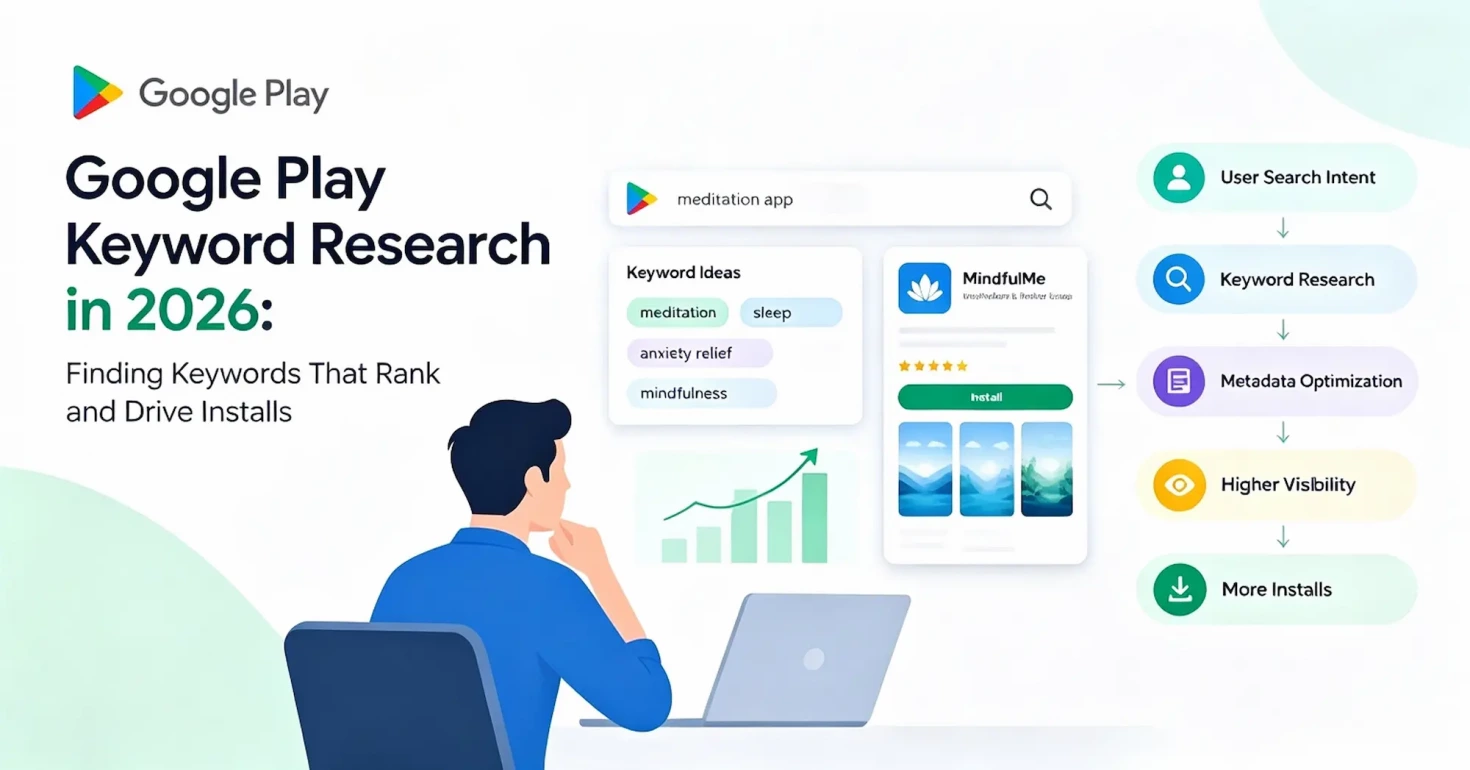
Google Play reads the title, short description, and full description rather than a separate keyword list. There is no dedicated keyword field to fill. Instead, Google Play uses listing information and other relevance signals to match apps with user searches. A language-learning app that clearly describes “Spanish for travelers” may also appear for searches about travel vocabulary.
The table below compares the fields each store reads.
| Store | Field | Character limit | Dedicated keyword field | Matching method |
| Apple | App name | 30 | No | Indexed terms |
| Subtitle | 30 | No | Indexed terms | |
| Keyword field | 100 | Yes | Hidden, comma-separated terms | |
| Google Play | Title | 30 | No | Meaning and context |
| Short description | 80 | No | Meaning and context | |
| Full description | 4,000 | No | Meaning and context |
Keywords vs. Ranking Performance
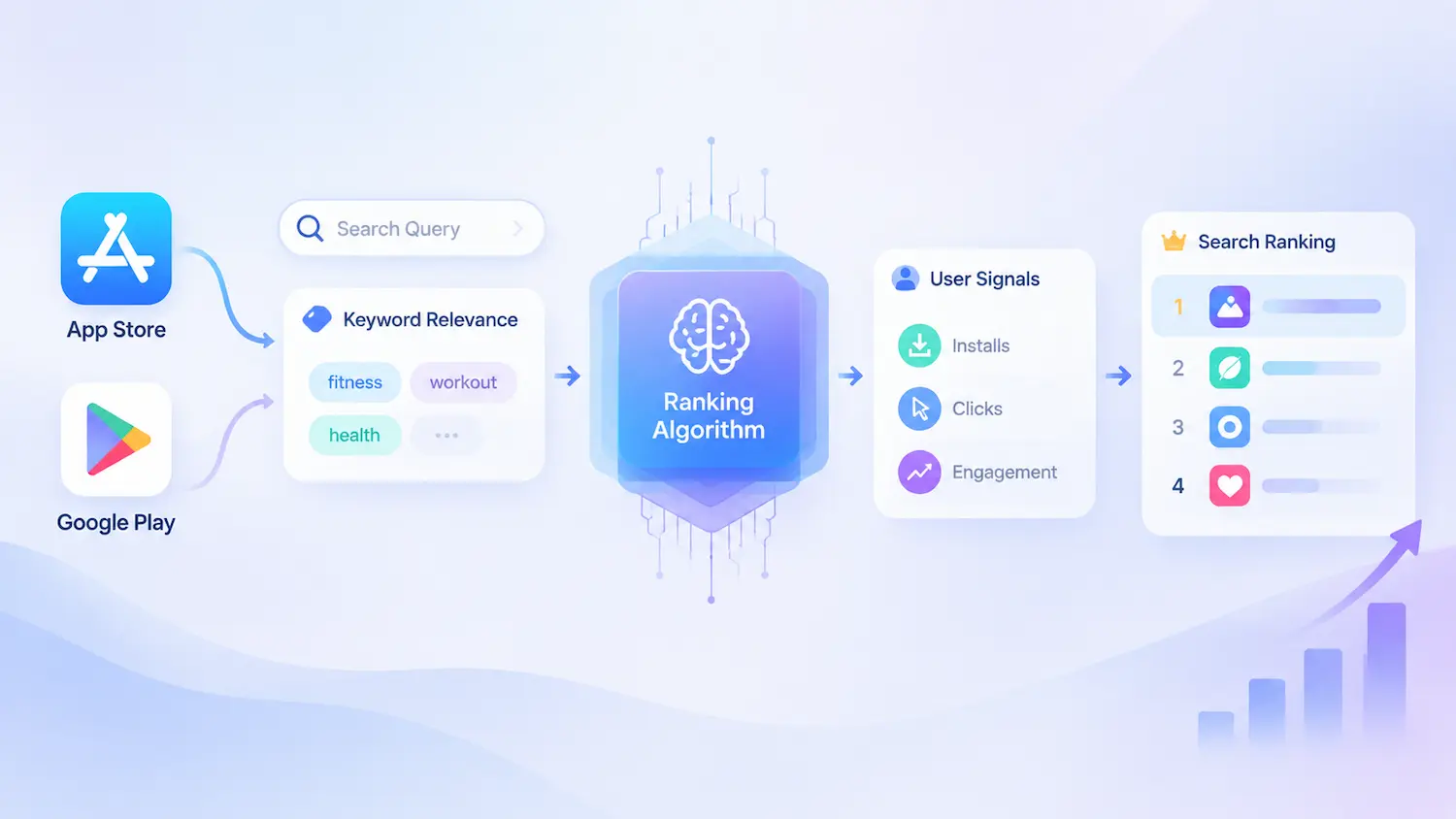
Keywords help stores understand app relevance, while both Apple and Google Play consider broader signals related to app quality, user experience, and performance. A well-matched keyword makes your app eligible to appear for a search. It does not guarantee a high position.
An app with strong keywords but weak ratings may still rank below a competitor that users prefer. For this reason, keyword work and performance tracking belong together.
Step 2: Build an App Keyword Research System
App keyword research is not about collecting as many words as possible. It is a repeatable process that turns real user language into a shortlist of keyword candidates.
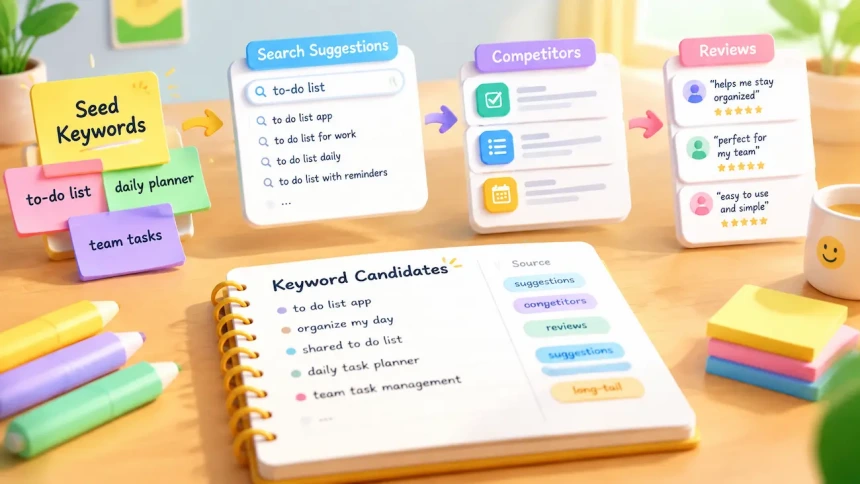
Start with seed keywords. Seed keywords come from four angles: features, problems, audiences, and situations. A task-management app might start with “to-do list,” “daily planner,” and “team tasks.” Each seed is a starting point for the next stage, not a final choice.
Expand each seed with search suggestions. Both stores show autocomplete queries, which reveal how real users phrase a search. Type a seed into each store’s search bar and record every relevant suggestion. The Apple Ads API provides keyword popularity data and related search insights that can support keyword research without relying only on third-party tools.
It only includes terms above a minimum search and impression threshold, and each country and genre combination returns a capped number of terms. Treat the score as a guide for comparison, not as an exact search count.
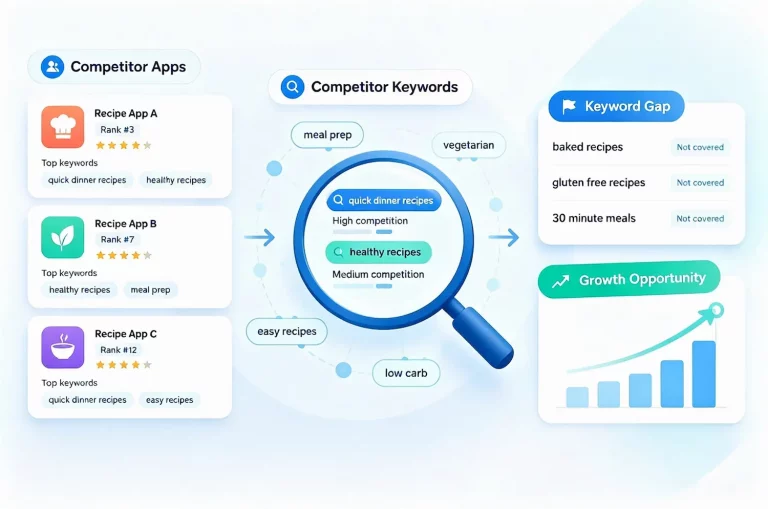
Study your competitors. App Store competitor keyword research shows which terms already attract users in your category. Review the titles, subtitles, and descriptions of top-ranking apps for each seed keyword. Terms that appear across several apps can reveal common category language and potential search demand. Use competitor keywords as research input, not as listing copy.
Mine reviews and long-tail terms. Reviews describe problems in the user’s own words, not in marketing language. A listing may say “workflow optimization,” while users search for phrases like “organize my day.” Note the exact phrases reviewers use, because they often reflect real search intent.
Long-tail phrases carry clearer intent and usually face less competition than broad category terms: “shared to-do list for couples” signals a specific need, while the single word “planner” does not. Record every candidate in one sheet, along with where you found it. That source column helps you judge keyword quality when you filter the list in the next step.
Step 3: Select App Store Optimization Keywords by Relevance
A long candidate list is not yet a strategy. You need a consistent way to evaluate each term, and three metrics do most of the work.
- Relevance asks whether the term matches what your app actually does.
- Demand measures how often people search the term, not how valuable those searches are.
- Difficulty estimates how hard the term is to rank for against current results.
Relevance comes first. A popular but misleading keyword can bring visits without generating installs, and it uses up one of your limited keyword slots. Before you commit to a term, search it yourself and check whether the top results resemble your app.
Apple’s popularity score is a relative indicator of search interest, where higher values suggest stronger demand compared with lower values. The same signal is also published within each genre, on a different scale. Check which scale a tool reports before you compare numbers from different sources.
Next, match search intent. Category intent covers broad terms like “travel planner” that describe a whole use case. Feature, problem, and brand intent each need different metadata space to answer. A feature term might be “offline maps,” while a problem term might be “plan a trip with friends.” Brand intent includes people who already search for your app by name; these searches show existing awareness rather than new discovery, so keep brand terms separate from the keywords you use to reach new users.
Once you have evaluated each term on these three metrics, sort your candidates into three groups. Core targets are the highly relevant terms at the center of your app, such as “travel planner.” Quick wins are relevant terms with lower difficulty that may rank sooner, such as “group trip itinerary.” Expansion terms are broader or adjacent phrases you save for later growth, such as “vacation checklist.”
Revisit these groups as rankings and market conditions change. A quick win that reaches a strong position may later become a core target.
Step 4: Place App Store Keywords in Apple and Google Play Metadata
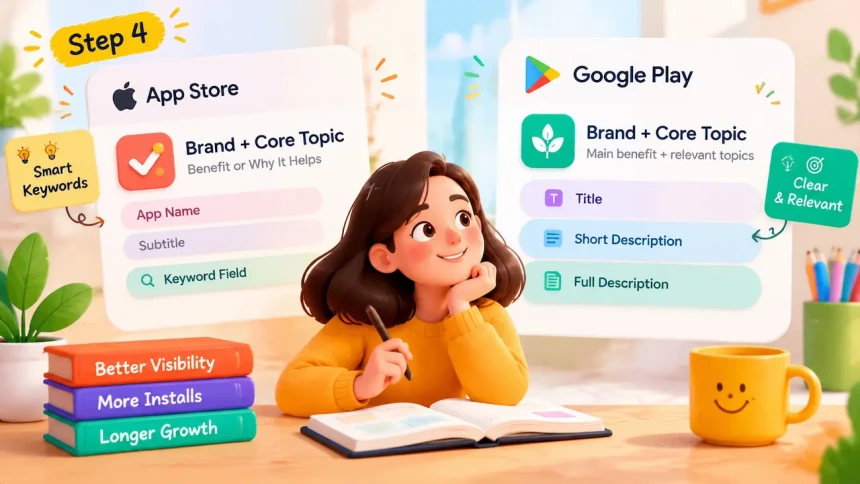
Each store reads your listing differently, so each has its own rules. Once you have selected your target keywords, the next step is placing them where each store can use them effectively. Start with Apple, where keyword placement depends on specific metadata fields.
iOS Keyword Optimization in App Store Metadata
App name and subtitle. The app name should pair your brand with one core keyword, not five; extra terms make the name harder to read. A task-management app might use its brand plus “Daily Planner.” The subtitle should add a benefit the name could not fit. If the name says what the app is, the subtitle can say why it helps. “Keep Team Tasks on Track” adds new terms and a benefit without repeating the name.
Keyword field. Use single words separated by commas, with no spaces. Apple can combine individual keyword terms into search queries, allowing one word to contribute to multiple relevant searches. To learn more about choosing and placing Apple App Store keywords effectively, see our detailed iOS keyword optimization guide. Skip stop words like “for” and “the,” and don’t repeat words already in the name or subtitle.
Never include competitor trademarks (see Where Store Policies Draw the Line). You don’t need to fill every character, and non-Latin scripts fit fewer words, so plan around fewer, stronger terms.
Finally, treat the three fields as one system and give each term one job: the name holds your core term, the subtitle adds a benefit or positioning angle, and the keyword field covers supporting terms.
Google Play Keyword Optimization
Google Play treats your listing as a system of meaning, not a set of slots to fill. Your goal is to describe the app clearly and help the store connect it with relevant searches.
Title. Carry your brand plus the core topic in one short line. Keep it readable, because users see it before anything else. A clear title might pair a brand name with “Team Task Manager.”
Short description. Lead with the main benefit, then support it with relevant topic words. Users see it early on the listing page, so it needs to communicate value as well as context. “Organize projects and share tasks in one place” does both.
Full description. Explain what the app does and who it is for: the user’s problem, the solution you offer, and the benefit they gain, in natural language, followed by supporting details. Write about the problem you solve instead of listing keyword variants. A description about “keeping a team on track” gives Google richer context than a list of repeated alternatives for “task.” Google Play policies prohibit keyword stuffing in descriptions, and repetition adds characters without adding meaning.
Step 5: Adapt App Keywords by Growth Stage
Your keyword mix should change as your app matures.
At launch, target long-tail phrases first. New apps should aim at phrases where competition is thin and intent is clear. A new team-chat app has little chance of ranking for “messaging app,” but a better chance with “chat for remote project teams.”
Once early rankings stabilize, expand into mid-volume terms. These attract more searches but face stronger competitors. Review which launch keywords now hold steady positions, then add related terms that describe the same user need more broadly.
At scale, established apps can compete for broader category terms and defend their branded searches. Broad terms can bring larger audiences, but they usually require stronger ratings and download history.
Seasonal terms follow a different pattern. They can lift visibility for a short window and then decay quickly. A travel app, for example, might target holiday-related phrases before peak booking periods. Remove them when interest fades so they do not take space from evergreen terms.
Beyond organic keyword research, paid search data can provide additional signals when deciding which terms deserve further investment. Apple Ads runs only on iOS, so paid keyword data is an iOS-only input. Beyond popularity scores, Apple Ads provides performance data such as impressions, taps, conversions, and cost metrics that can inform keyword decisions. Use it to decide which terms deserve organic investment, but do not treat it as a view of Google Play demand.
Step 6: Localize Keywords Without Translating Them
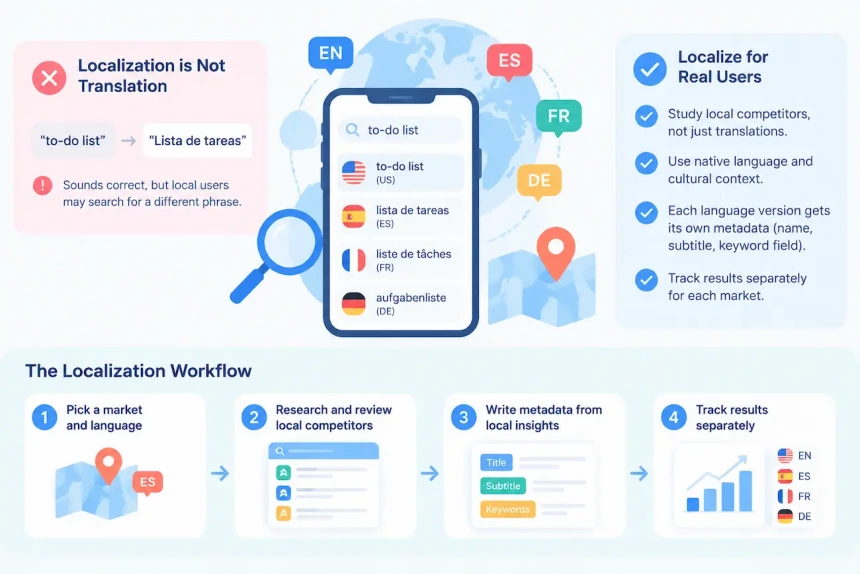
Localization is not translation, because search intent shifts between markets. A phrase that performs well in one language may describe a different need in another.
Literal translation produces phrasing nobody searches for. A team may translate “to-do list” word for word, yet local users may search for a different everyday phrase. The text reads correctly but never matches a real query. For the same reason, do not copy one market’s keyword list into another, even in translated form. Review a few local competitors first.
On the App Store, each localization can have its own name, subtitle, and keyword field, allowing developers to target different markets with separate metadata. Google Play also lets you localize listings per language in Play Console. Write each version for local users instead of copying the original text.
Not every market deserves the same effort. Decide which markets to enter using installs, revenue, competition, and available resources. Start with markets where your app already shows traction, and expand as your team can support localization and ongoing measurement.
Follow this workflow for every market:
- Pick one target language and market.
- Run the same research and competitor review in that language.
- Write metadata from those findings, not from a translated list.
- Track results for each language separately.
Repeat the process whenever you add a new language. Native speakers or local ASO specialists can help confirm that each phrase sounds natural.
Step 7: Track Results and Iterate
Keyword work does not end when you publish a listing. This step covers what to measure, what official reports can and cannot tell you, and how to test changes.
Metrics to Monitor
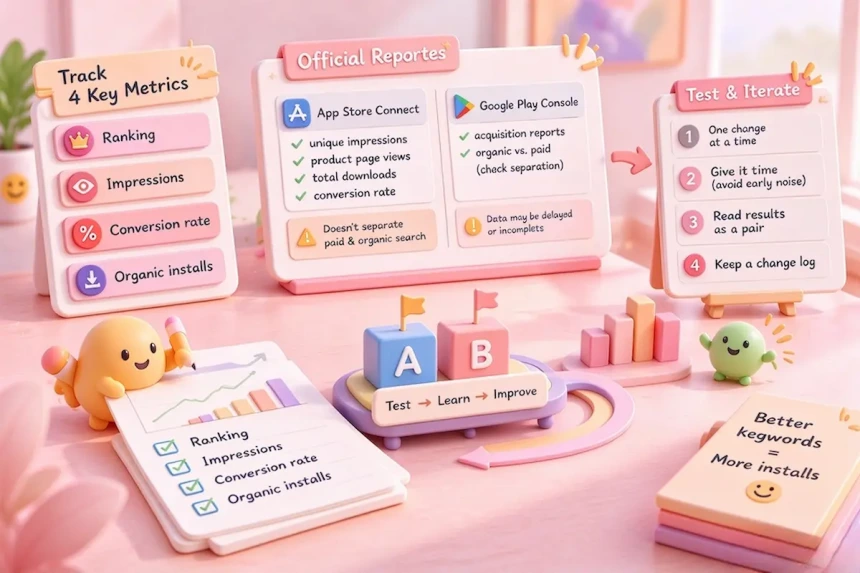
Track four things: ranking position, impressions, conversion rate, and organic installs. Each one answers a different question. Ranking shows where you appear, impressions show how often people see you, and conversion rate shows how many of those people act. Organic installs tell you whether the whole chain works.
Record these numbers for each keyword group on a fixed schedule. A steady routine makes it easier to spot real change instead of daily noise.
What Official Dashboards Show and Do Not Show
App Store Connect reports unique impressions, product page views, total downloads, and conversion rate. The App Store search source also includes views and downloads from search ads. That means the report cannot separate paid search traffic from organic search traffic. If you run Apple Ads, your search numbers mix both, so keep this in mind before you credit a keyword change with a result.
Official reports also have data thresholds. Download metrics need at least five first-time downloads before they appear, and usage data covers only users who opted in to share analytics with you. For a small or new app, some numbers may be missing or incomplete. An empty field does not mean no activity; it may only mean the data is below the reporting threshold.
Google Play Console provides its own acquisition reports. Check how it separates organic traffic from paid traffic before you credit a keyword change with a result.
Test One Change at a Time
Change one group of terms at a time so you can attribute the effect. If you update the name, subtitle, and keyword field together, you won’t know which edit mattered. Give each change time to run before you judge it, since rankings take time to settle and early movement can reverse. Avoid reacting to the first few days of data.
Then read the results as a pair. If rankings rise while installs fall, the intent behind those terms is probably wrong: your app appears for searches that don’t match what users want. If impressions rise while conversion drops, the new terms may be attracting mismatched traffic, or your screenshots and opening copy may not match what those searchers are looking for. Check the product page first, then consider replacing the terms if the mismatch remains.
Finally, keep a change log with the date, the terms changed, and the result. That record turns each test into knowledge you can reuse in the next round.
Common App Store Keyword Optimization Mistakes
Most keyword mistakes happen when teams focus on keywords alone and ignore how terms are placed, how the page converts users, or why competitors rank. Three come up again and again.
The first is rewriting keywords when placement is the real problem. A relevant term in the wrong metadata location may not perform as expected, so check field coverage and move the term before you decide the keyword itself failed.
The second is replacing keywords when the page is the problem. If the screenshots and first lines don’t deliver what the keyword promises, users will leave without installing, and a new keyword will fail in the same way.
The third is copying a competitor’s top term. That term may ride on brand traffic, since those users searched because they already knew the brand, so the competitor’s ranking doesn’t automatically transfer to your app.
Some mistakes carry risks beyond weak performance. Apple states that improper keyword use is a common reason for App Store rejections, and a rejected update delays every other change planned for that release. Trademark complaints from other developers carry risk beyond a review rejection, so never treat a competitor’s brand as a shortcut to their audience. Google Play also enforces its rules and removes listings with misleading or irrelevant metadata.
FAQs
What is the difference between App Store and Google Play keywords?
The main difference is where each store gets keyword signals. Apple relies more on specific metadata fields, while Google Play evaluates the overall meaning of your listing. This means the same keyword strategy should not be copied across both stores.
Can I get official App Store search volume data for free?
Yes, in limited form. Apple’s official API exposes search demand as a popularity score, not an exact search volume, and it has limits. Only terms above a minimum search and impression threshold are included, and each country and genre combination returns a capped number of terms. See Step 2.
How accurate are ASO tool keyword volume estimates?
Third-party volume figures are estimates, and each vendor uses its own method. Vendors can change that method, so a sudden score shift may reflect a tool update. Compare trends within one tool, not raw numbers across tools.
How many keywords should an app target?
There is no fixed number that suits every app. Quality matters more than quantity, and the character limit in each field caps what you can include. As a rule of thumb, shortlist only the terms you can place in a field and support with relevant listing content.
App Store Keyword Optimization Requires a System, Not Just a Keyword List
Successful App Store keyword optimization is a repeatable system that evolves as your app, users, and markets change, and it never depends on finding one perfect term.
It starts with research into the words real users type when they look for an app like yours. From there, choose terms by relevance first, then by demand and difficulty, and place each in the field or listing text its store uses for relevance. Once the listing is live, change one group of terms at a time and read rankings together with conversion, so you know what made the difference. Then keep what works, replace what doesn’t, and repeat.
Your approach should adapt to each store, each growth stage, and each market you enter. The apps that keep growing are rarely the ones that ranked well once. They keep learning from search behavior, user reviews, competitor movements, and performance data, then refine their listings with what they learn. Review your system on a regular schedule, because stores, tools, and user language all change over time.
Start with research: identify the phrases your users would search for, and record each one in a single sheet.