

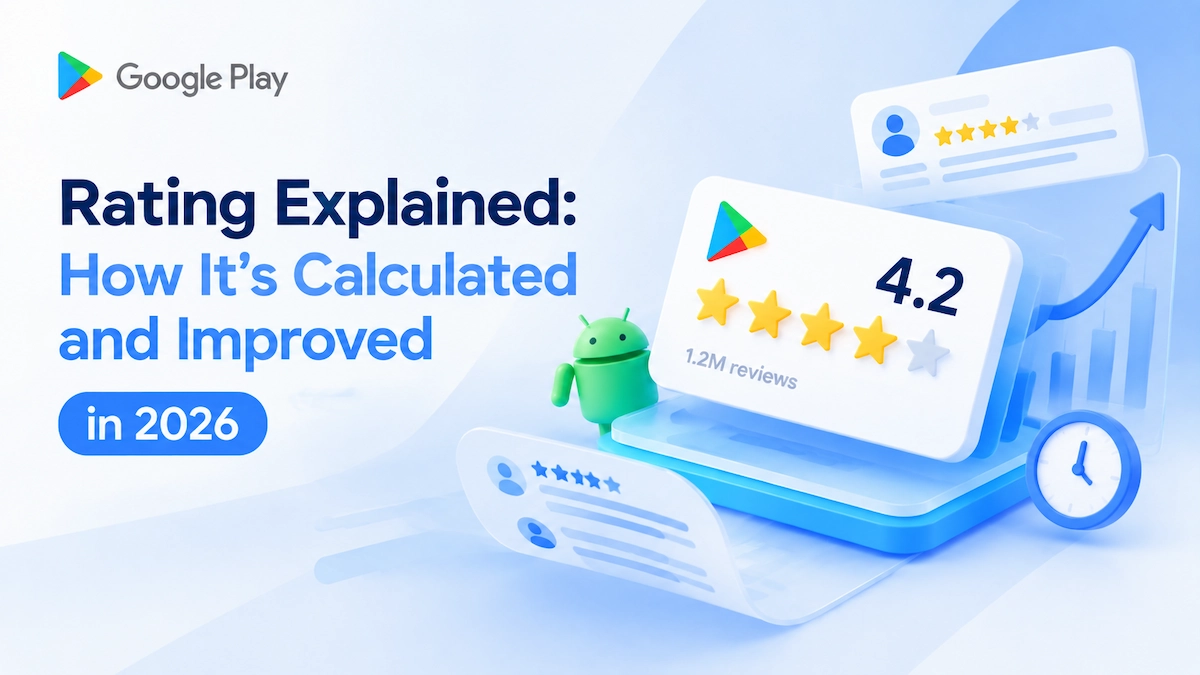
Your Google Play rating is one of the first things a visitor sees on your listing. It helps decide whether they tap Install. Yet the number is easy to misread. It is not a simple lifetime average, and new ratings can take time to appear. Google has also never said how much your Play Store rating counts toward ranking.
This guide explains how Google Play calculates and publishes ratings. You will learn why apps end up with low scores, and what Google has and has not confirmed. The next sections show how to improve your rating without breaking policy. A final section covers how to read your rating data in Play Console.
What Google Play Ratings and Reviews Are
A Google Play Store rating is the star score users give to an app on Google Play. Users can rate an app from 1 to 5 stars, with higher ratings generally indicating stronger user satisfaction.
Google Play ratings represent star scores, while Google Play reviews provide written feedback from users. A rating shows a quick overall impression of an app. Play Store reviews explain the reasons behind that rating, through comments about user experiences, features, performance, or issues.
Although ratings and reviews are often mentioned together, they serve different purposes. Ratings provide a simple measure of user sentiment, while reviews offer detailed feedback that helps users understand an app and helps developers identify areas for improvement.
How Google Play Calculates and Publishes Ratings
Ratings look like one simple number, but Google Play builds and publishes them a specific way. Recent feedback counts for more than feedback from years ago. New ratings can take time to appear publicly. And there is no reset option to fall back on.
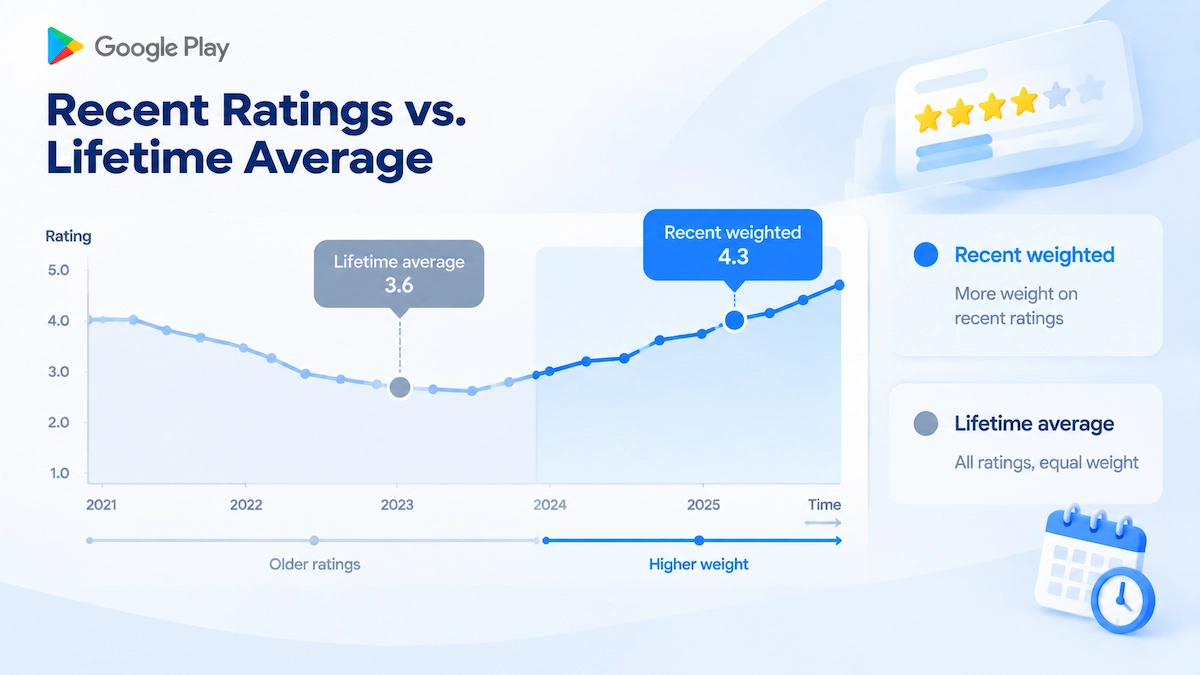
Recent Ratings vs. Lifetime Average
The Google Play rating calculation does not simply rely on the lifetime average of all ratings an app has received. According to Google Play, app ratings are calculated based on an app’s current quality ratings from user reviews. They are not based on the lifetime average value. This rule applies unless an app has very few ratings.
Google also explains that the rating shown to users is weighted toward more recent ratings to better reflect changes in an app’s current quality. This means the displayed rating is designed to represent the app’s present user experience rather than only its entire rating history.
This change does not mean previous ratings are removed. Google still shows the total lifetime number of ratings, which provides users with additional context about an app’s usage and longevity.
Google does not publicly disclose the exact weighting formula, calculation curve, or the specific time period used to evaluate ratings. Developers should focus on overall app quality and rating trends instead of optimizing for an undisclosed formula.
One thing you cannot do is reset the score. Unlike Apple’s App Store, Google Play does not provide a manual rating reset option. Replies to Play Store app reviews are the main lever instead. According to Android Developers, replying to a negative review can raise that rating by 0.7 stars on average.
Why New Ratings May Not Appear Immediately
Google Play may delay the public display of new ratings and reviews while it checks for suspicious activity. New ratings do not immediately affect your published rating. In most cases that hold lasts around 24 hours, not a fixed window.
When the check flags suspicious activity, Google pauses publication of all new ratings and reviews. The pause continues until the investigation closes, and abusive entries are removed. Developers still see new reviews during the hold, and can reply to them. That gives you a head start on support issues users cannot yet see.
Why Google Play Apps Receive Low Ratings
Technical Causes Play Measures
Several technical factors can influence how users rate an app on Google Play. The main ones include app stability, responsiveness, battery usage, and overall performance. Play tracks these issues through Android vitals, which measure problems users experience during daily app usage.
Two stability metrics sit at the center of this system: the user-perceived crash rate and the user-perceived ANR rate. An ANR (Application Not Responding) happens when an app stops responding to user input.
Play publishes bad behavior thresholds for both: 1.09% and 0.47% of daily users. Both are overall thresholds, averaged across all devices. Above those figures, Play may reduce your app’s visibility and warn shoppers. The rating damage usually arrives before your crash dashboard shows it.
Play flags excessive battery usage and excessive partial wake locks as core vitals too. A phone that runs hot or dies by midday becomes a complaint about the app. Slow screens arrive in review text as “laggy” or “freezes constantly.” Few of those reviewers name the metric behind them.
Experience Gaps Behind Low Ratings
Technical faults are only half of it; many low ratings come from experience gaps. A complicated first-run journey loses people before the app proves its value. Aggressive permission requests read as a privacy grab, especially when the reason is unclear. Ads that interrupt core tasks turn a useful tool into a nuisance.
Missing localization makes the app unusable for whole markets. Silence towards user feedback compounds every gap above. Reviewers say both out loud, in public, and often in the same review.
Why So Few Ratings Skew Your Average
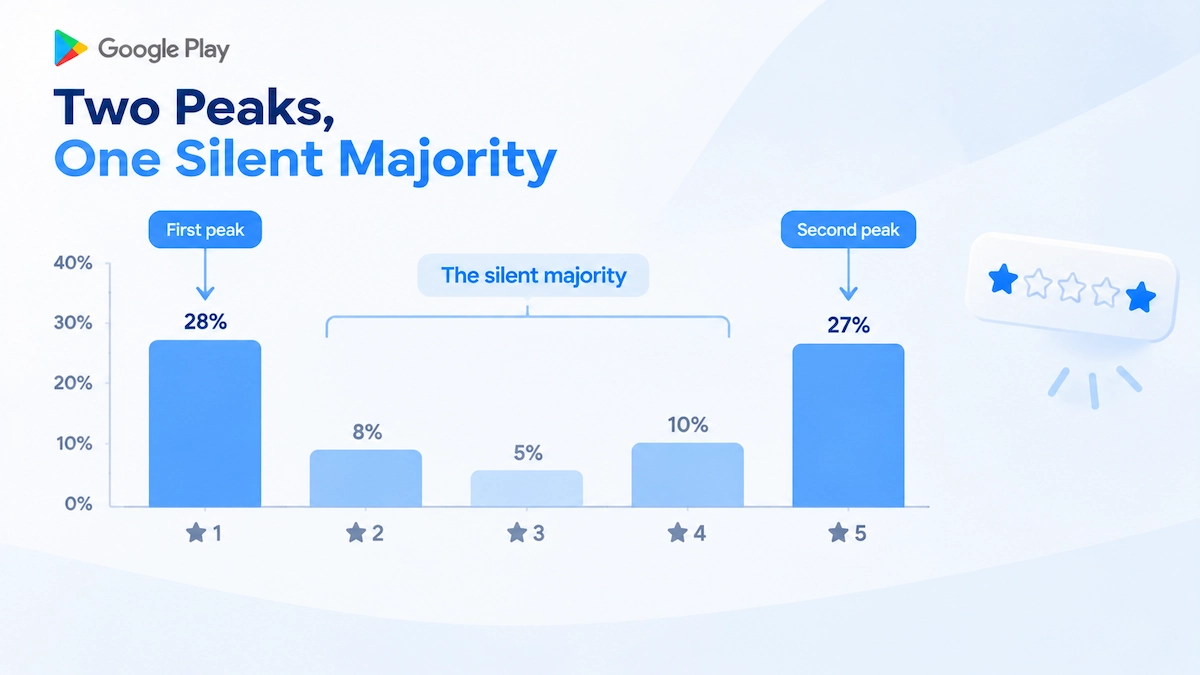
This is where the silent majority matters. Only a small share of users ever rate an app. The people who do sit at one emotional extreme. Delighted users rate to praise, and frustrated users rate to warn. Everyone in between closes the app and says nothing.
That gap shapes the number you see. Your average tracks the argument rather than a typical session. It is why rating distributions settle into two peaks instead of one.
Read the number through that filter. A small, polarized sample makes a thin problem look fatal and a widespread annoyance invisible. The score shows your loudest failures, not a full picture of user experience.
Ratings and Reviews as Quality Signals — and What Google Actually Says
Ratings and reviews are among the signals Google considers when evaluating app quality and user experience. Google’s Play Console help documentation lists user feedback — ratings, reviews, and engagement — in that group of quality signals. Note the word: signals. Nothing in that documentation assigns ratings a weight, a position, or a formula.
What Google Has and Has Not Confirmed
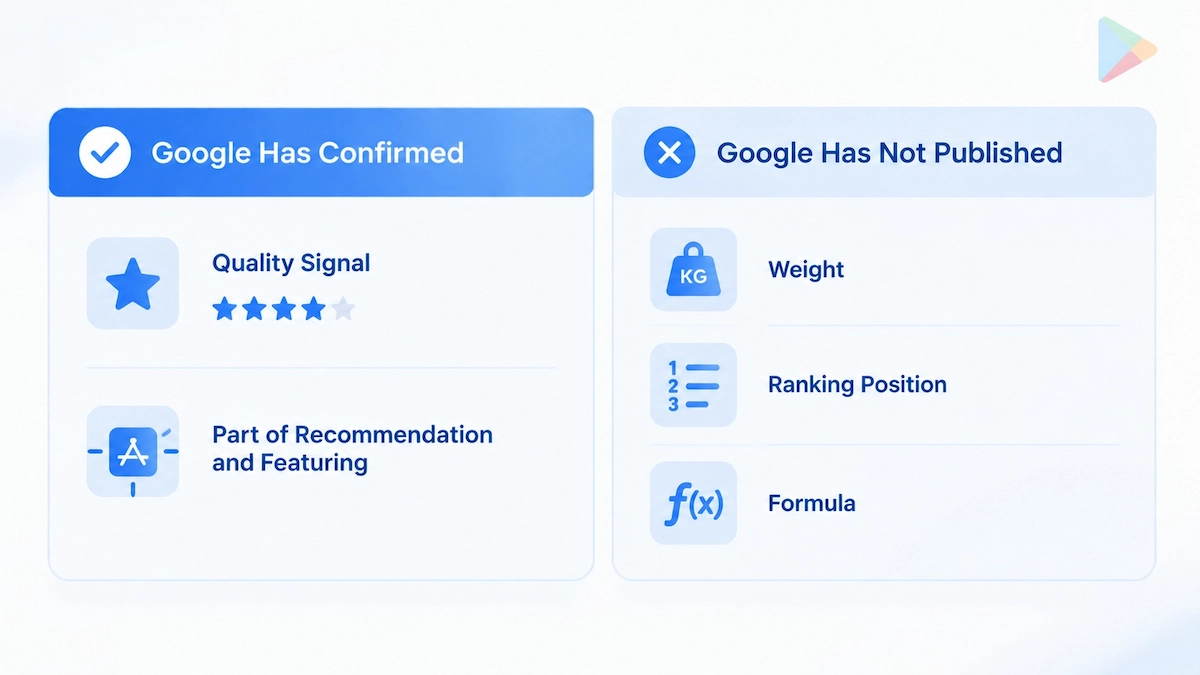
That gap matters, because third-party guides fill it with numbers Google never gave. Some describe the link between star ratings and search position far more strongly. Others suggest that a higher average pushes your app up the results. Both readings exceed what Google documents. Google has never published how heavily ratings count, or how far they move search order.
Google has made one public statement that comes close. In an August 2021 Android Developers Blog post, Google said ratings are “taken into consideration for featuring and placement” on Play Store. That sentence names no numeric weight, no position, and no measurable effect. Read it as a signal Google weighs, not a dial you can turn.
What Third-Party Sources Can and Cannot Tell You
Third-party studies do estimate those figures. Their authors usually label the numbers as inference from testing, not official Google data. Use them to prioritize your work, not to predict a ranking outcome. Directional guidance is fine; a promised position is not.
Third-party ASO tools have a clear place, but it is not algorithm decoding. Treat them as efficiency layers instead.
Their real strengths are speed and scale. You can manage ratings across both stores in one dashboard, run sentiment analysis, and reply in bulk. Those workflows save hours for teams handling many apps or markets. Still, start with Google’s own review features before paying for anything. The native tools cover more ground than most teams use.
Why Ratings Still Matter Beyond Rankings
Google also never said that replying to reviews raises rankings directly. That belief circulates widely in ASO advice, with no official page behind it.
The real benefit runs through people instead. A specific, timely reply gives an unhappy user a reason to revise their rating. It also shows every other reader of that review that a real team is listening. Trust rises, and trust is not a metric Google publishes.
Ratings also shape whether a store visitor installs your app. Negative feedback is often what decides it, and how to respond to negative app reviews is a separate skill.
Treat ratings as a quality readout, not a lever with a known exchange rate. Your score reflects crashes, broken flows, slow support, and unclear paywalls. Fixing those raises the number as a side effect. Chasing the number directly leads to tactics Google penalizes.
How to Increase Your Play Store App Rating
Your Google Play rating is one of the first things users see. It shapes trust, conversion. Most advice starts with store-listing tricks. This section works on the product side instead. The first move is not asking for ratings at all: it is fixing the problems that drive one-star reviews in the first place.
Fix Product Experience with Play Vitals Data
Most one-star reviews describe technical problems, not missing features. Crashes, freezes, and slow loads push people to the rating box faster than any design flaw. Technical quality is the fastest lever on your Google Play Store app rating.
Play Console’s Android Vitals gives you the data to fix what hurts most. The dashboard tracks crash rate, ANR rate, excessive wakeups, and battery drain. It also tracks slow and frozen frames, plus permission denials. Compare your numbers against Google’s bad behavior thresholds. Metrics above those limits also hurt your visibility in Play search results.
Prioritize in this order: crashes first, then ANRs. A crash ends the session instantly, so it produces the angriest reviews. ANRs come next, because “app keeps freezing” is one of the most common complaints. Then work on startup time, rendering speed, and battery use. A three-second cold start feels broken; a one-second start feels free.
Use the data, not gut feeling. Your fastest test device may hide the mid-range phone most of your users own. Android Vitals shows real-world device data, so you fix problems where they actually happen.
Each shipped fix is a chance to improve your Google Play rating. Users who install the update often leave fresher, happier reviews.
Use the In-App Review API Correctly
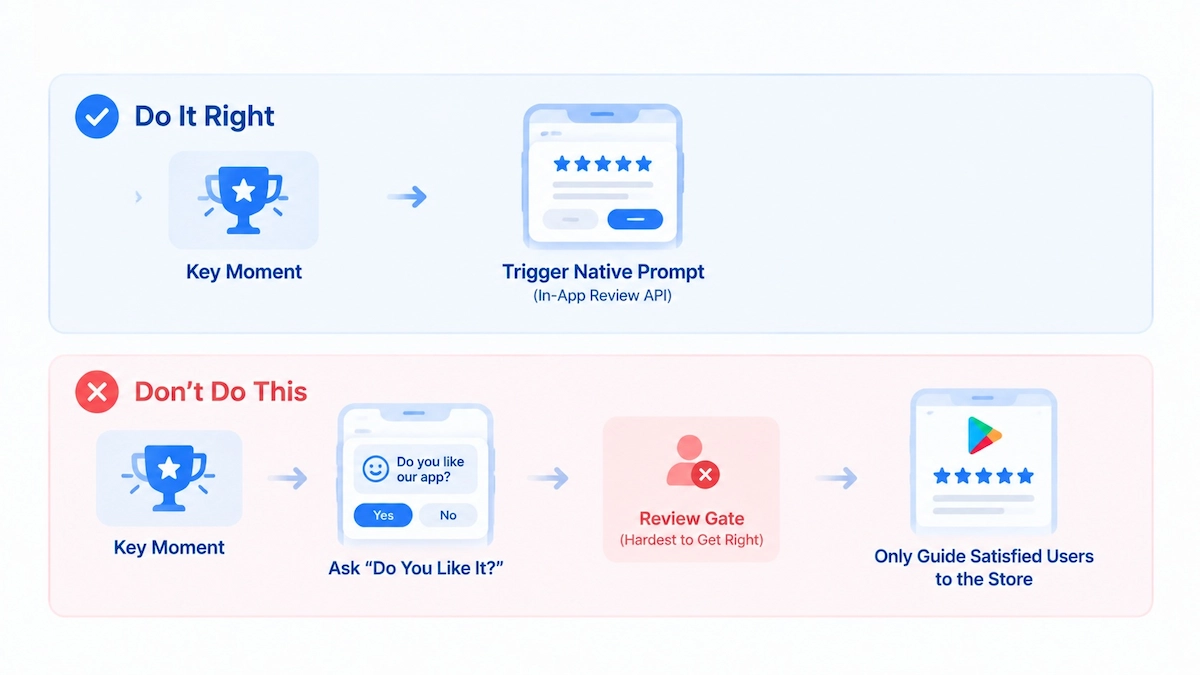
The In-App Review API is the right way to ask Google Play users for ratings. It shows the native Play dialog inside your app, so users never leave the flow. Google controls when the dialog actually appears, and that limit is by design.
Never ask a pre-question like “Do you like this app?” before triggering it. Those kind of pre-prompt filters who sees the request. Google’s guidelines explicitly prohibit gating the dialog on a survey or a happiness score. It feels fair to you, but it reads as manipulation to users and to Google.
Do not cover the native dialog with your own UI either. No overlays, no custom skins, no popups stacked on top of it. The API’s design guidelines are explicit: keep the dialog fully visible and interactive.
Trigger the API after a moment of clear success. Good moments include a completed checkout, a finished level, or a saved milestone. The user feels rewarded, so the rating reflects real satisfaction, not friction. If the request returns, wait at least a few sessions before trying again. Never repeat it inside the same flow, even if the first attempt was dismissed.
One more thing to accept: the API may not show the dialog at all. Quotas and user history decide that. Build for the moments, not for a guaranteed popup.
Simplify the Rating Flow Without Review Gating
Older apps sent users out of the app to leave a rating. The user opened the menu, tapped a link, waited for the store, then found the review form. Every extra step lost people, and many never came back. The native In-App Review API removes that whole journey. The dialog opens inside the app, so the user can rate in a few taps without leaving.
Fewer steps also mean more completed ratings. A shorter path to the dialog raises response rates, which improves your Google Play Store app ratings over time. If you are working out how to increase app rating in Play Store, cutting friction usually beats adding more prompts.
Giving users an in-app feedback channel is perfectly fine. A “send feedback” button, a support chat, or a bug report form all help you hear problems early. That is a product feature, not a trick.
What is not fine is review gating. That means deciding who ever sees the rating request based on predicted satisfaction. Examples include quizzing users first, routing happy users to the store, and angry users to a survey. Google’s ratings and reviews policy bans this practice. Keep one open path for everyone, and let the timing do the work.
Avoid Incentivized Ratings and Reviews
Never ask for five stars, and never attach a reward to a rating or review — unlocks, bonus coins, and ad removal all count. Reward your own product survey or beta program instead, and keep it outside the Play Store rating flow.
That closes the quality side of ratings. Replying to reviews is a separate practice with its own playbook, so we cover it elsewhere. The same goes for keyword and store-listing work; that belongs to classic ASO and is not repeated here.
Google Play Store Rating and Review Policy
Google Play Store ratings and reviews are governed by one official policy. The page draws hard lines around how ratings are earned. This section covers what it bans, what happens when you cross the lines, and what recourse you actually have.
Google official policy names the violations directly. Offering money or goods in exchange for a rating or review counts as manipulation. So does faking ratings or reviews, or repeatedly submitting them while posing as ordinary users. Apps whose main purpose is rewarding users for installing other apps are banned too. All of these attacks share one goal: inflating where an app appears on Play.
The consequences stack up quickly. Google can clear the offending ratings and reviews, so the ones you paid for simply vanish. It can remove the app itself from Play. Its safety teams also filter manipulated ratings at scale every year. For serious or repeated cases, enforcement reaches related developer accounts, not just the one that broke the rule.
You also cannot appeal your way to a better public rating. There is no manual process to edit or restore a public score. What you can do is flag reviews that break the comment posting policy. Use the report option on the review itself, and let Google’s teams handle the rest.
How to Read Your Rating Data in Play Console
A rating number means little without context. Play Console gives you the breakdowns you need to read it properly: by country, by device type, and by app version. This section shows where the data lives and how to turn it into release decisions.
Where Ratings Live in Play Console
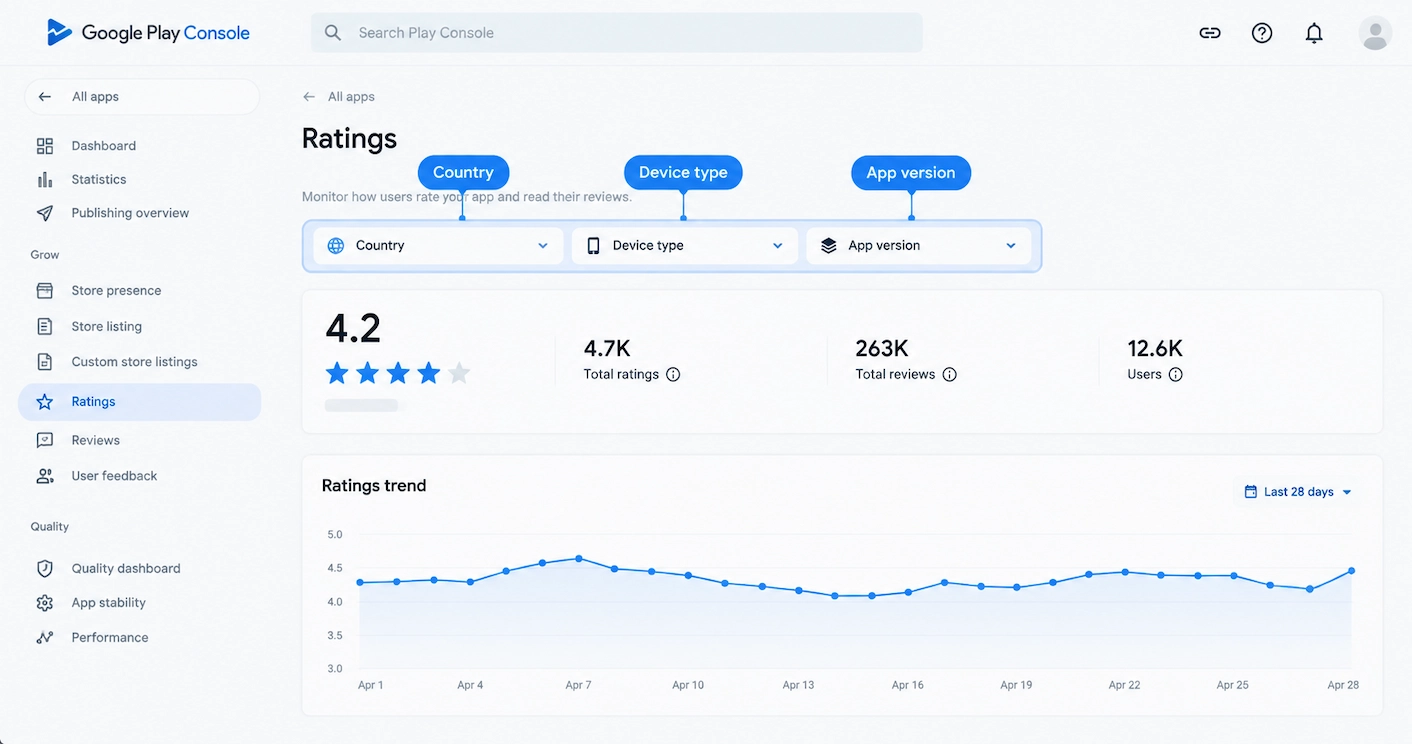
Open Play Console and go to Ratings and reviews, then select Ratings. That page shows your Play Store rating as an overview plus a trend over time. The official help page documents every view on this screen.
You can slice the same data by country, by device type, and by app version. Each slice answers a different question. A country split shows where unhappiness clusters. A version split shows whether a recent release made things better or worse.
Google added the device type dimension in 2021, and announced it on the Android Developers blog. The ratings page gained that dimension, and the reviews page gained a device type filter.
The device dimension covers phones, tablets, foldables, Chrome OS, Wear, and Auto. This matters because a tablet build often performs differently from a phone build. You can also pick a date range and an aggregation period independently. Ranges run from the last 28 days to the app’s full lifetime. Aggregation options are daily, weekly, or every 28 days. Rating distributions download as CSV for offline analysis.
Google also warns developers before user-visible ratings change. It analyzes the expected shift at least 10 weeks in advance. A drop of more than 0.2 stars on any device type triggers a heads-up. That applies in key markets, meaning places with over 5% of your listing visitors.
Compare Ratings Before and After a Release
Compare rating changes before and after major updates to identify whether product changes improve user satisfaction. That one habit turns your rating chart into a release report card. Mark each release date on the timeline, then watch how the trend moves in the following days and weeks. Over time, you build a version-to-rating record of what worked and what backfired.
Set a simple rhythm around this. Check the trend after every release, while the signal is fresh. Then do a deeper review of comment content once a month or once a quarter. Recurring complaints that survive several releases belong at the top of your roadmap.
Your Google Play Rating Is a Readout, Not a Target
Your Google Play rating is a readout of how your app performs right now. It leans on recent feedback, and it reflects crashes, slow screens, and confusing flows. It also reflects how quickly you respond to user feedback. Google has never said how much it counts toward ranking. Treating it as a dial to turn wastes your time. Treating it as a readout does not.
That leaves a short, practical routine. Fix what Android vitals flags first. After a clear moment of success, ask for a rating through the In-App Review API. Keep it free of gating and incentives. Then, after every release, open Ratings in Play Console and check the trend by version, country, and device type.
Do that consistently, and the number tends to follow. The product changes first, and the rating records it.
FAQs
Why Can’t I See My App’s Rating Even Though Users Have Rated It?
Yes — but they may not show yet. Google needs enough ratings before it displays a public score. New ratings also sit in a review queue for about 24 hours. If Google flags suspicious activity, publication pauses until that check ends. You can still see and reply to held reviews in Play Console during the hold.
Why Do Different Users See Different Ratings for My App?
Because Google personalizes ratings by country and device type. Since late 2021, the score reflects the experience for each user’s own context. A tablet user and a phone user can see different ratings for the same app. This is why the country and device splits in Play Console matter so much.
What Can I Do About Fake One-Star Reviews?
Report the review through the flag option and cite the comment posting policy. Google filters manipulated ratings at scale, and serious cases reach related developer accounts. What you cannot do is restore your public score by appeal. Keep earning genuine recent feedback instead, because it weighs more in the displayed score.
Do Google Play Ratings Affect My App’s Ranking?
Google treats them as quality signals for featuring and placement. It has never published a weight or formula. Treat the rating as a readout of app quality, not a ranking lever.