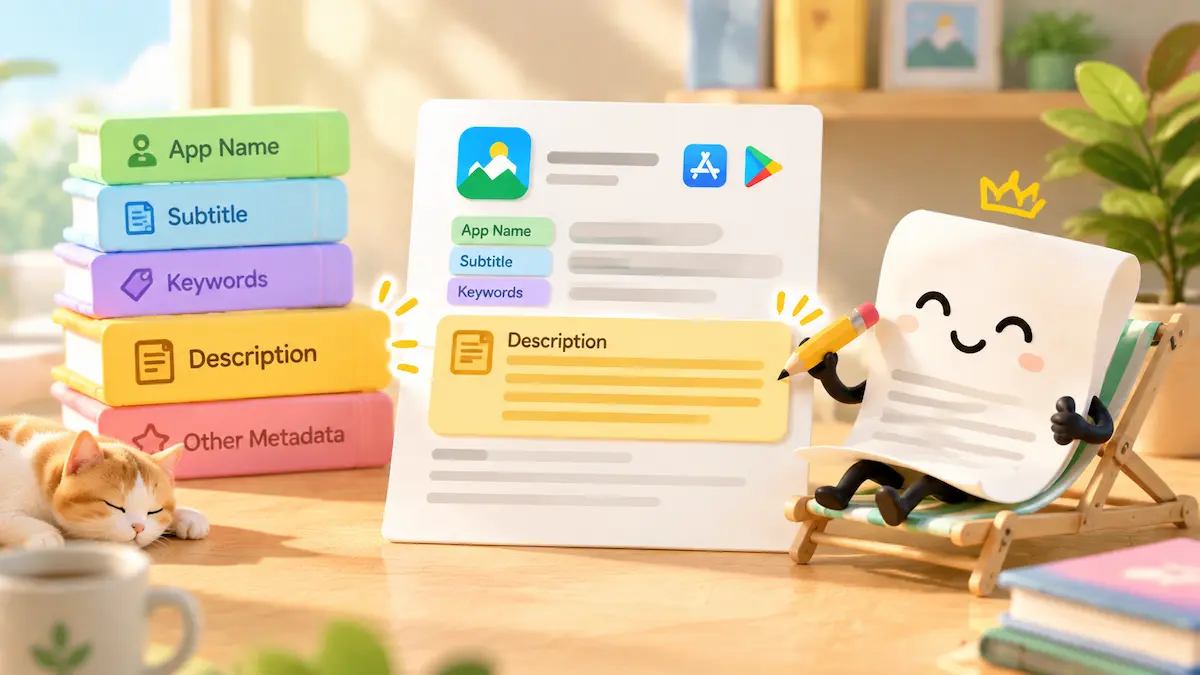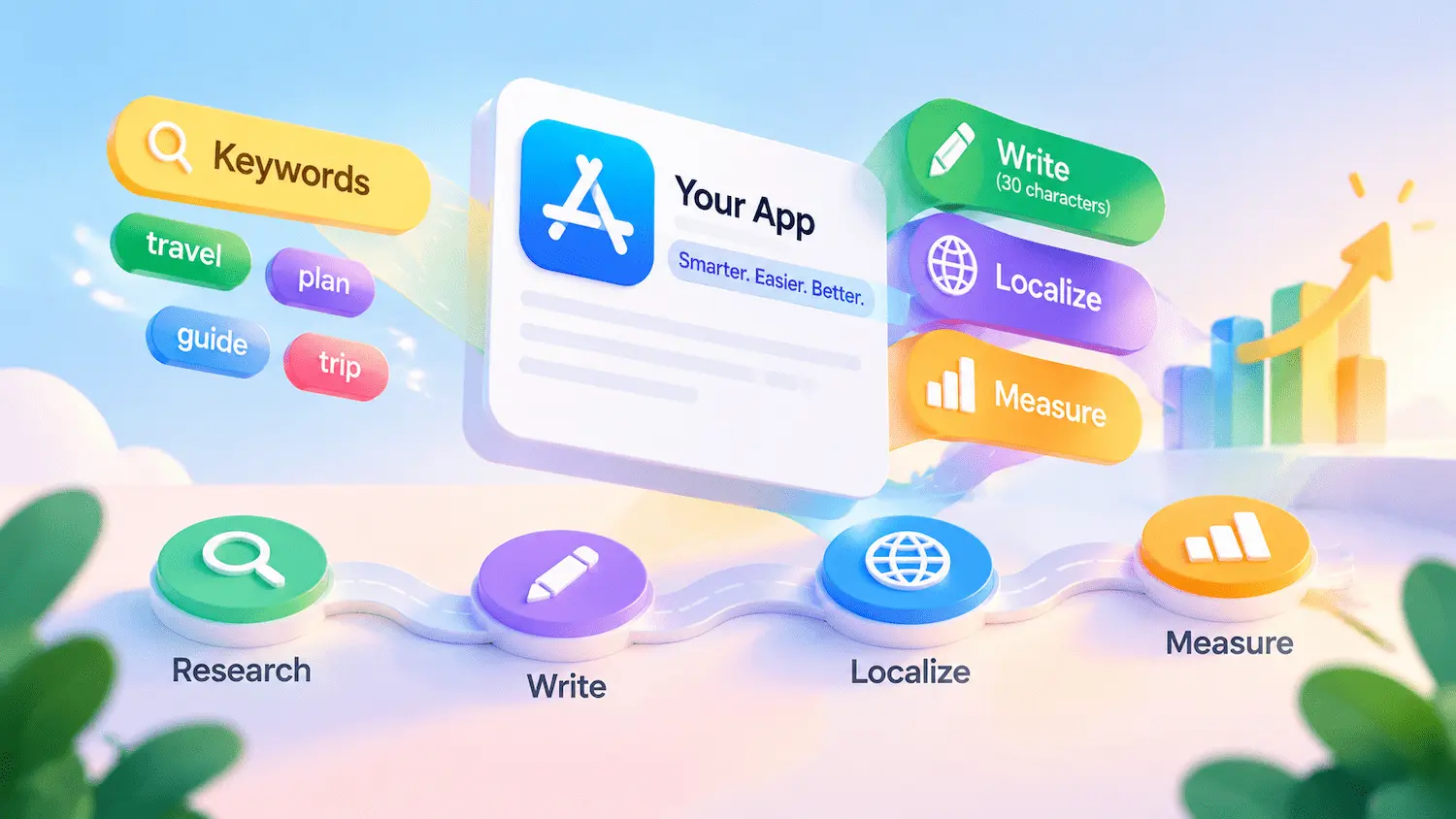


The Keywords field in App Store Connect is a developer-only metadata field that helps your app appear in relevant App Store search results. Understanding App Store keyword rules helps you follow Apple’s requirements, choose relevant terms, and make better use of the available space. These rules cover three main areas: field limits, keyword selection, and localization.
Key Takeaways
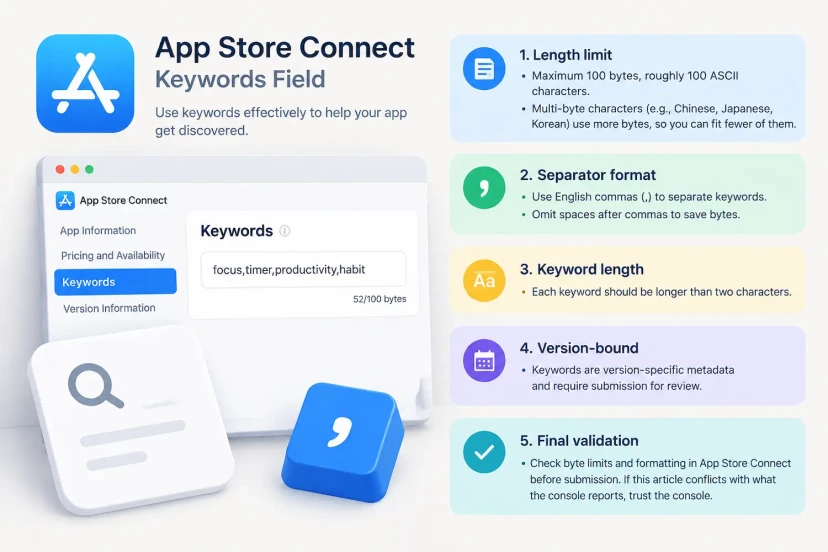
- Length limit: Maximum 100 bytes, roughly 100 ASCII characters. Multi-byte characters such as Chinese, Japanese, and Korean use more bytes, so you can fit fewer of them.
- Separator format: Use English commas (,) to separate keywords. Omit spaces after commas to save bytes.
- Keyword length: Each keyword should be longer than two characters.
- Version-bound: Keywords are version-specific metadata. Changes to a released version require a new app version and App Review.
- Final validation: Check byte limits and formatting in App Store Connect before submission. If this article conflicts with what the console reports, trust the console.
App Store Keyword Limit: Character and Formatting Requirements
App Store keywords limits cover more than the maximum field length. Developers also need to follow Apple’s formatting and keyword selection requirements to use the available space efficiently and avoid common metadata issues.
App Store Keywords Character Limit: 100 Characters or 100 Bytes?
Apple’s official documentation uses two different measurements for the Keywords field. The App Store Connect reference specifies a maximum of 100 bytes, while Apple’s product page guidance describes the limit as 100 characters. For technical validation in App Store Connect, use the 100-byte limit documented in the App Store Connect reference. Always check the value accepted by the console before submission.
For plain ASCII text (including standard English letters, numbers, and common punctuation), each character uses one byte. UTF-8 is a character encoding system in which different characters can use different numbers of bytes. For example, an English letter typically uses one byte, while many Chinese, Japanese, and Korean characters use three. This means non-ASCII text can fill the 100-byte limit faster.
The examples below show UTF-8 byte counts for different keyword entries. They illustrate encoding differences, not results from a live App Store Connect test.
| Keyword example | Characters | UTF-8 bytes |
| budget,planner | 14 | 14 |
| café,naïve | 10 | 12 |
| 旅行,天气 | 5 | 13 |
| 여행,날씨 | 5 | 13 |
Always check the actual byte count rather than relying on character count alone, and verify the final entry in App Store Connect.
How to Format the App Store Connect Keyword Field
Apple recommends separating keywords with commas and omitting spaces after them. Spaces within multi-word phrases are fine.
- Correct: budget,planner,expense tracker,savings
- Incorrect: budget, planner, expense tracker, savings
The second version wastes bytes on spaces without adding keywords.
Also keep in mind:
- Each keyword should be longer than two characters.
- Avoid symbols such as # and @ unless they are part of your brand identity.
Which Keywords to Leave Out
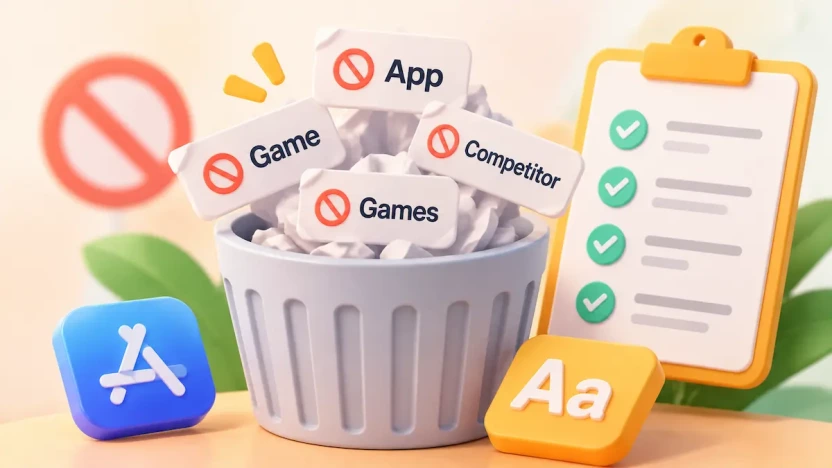
With only 100 bytes, prioritize terms that add search coverage rather than repeating existing metadata or targeting unrelated traffic.
- Words already in your app name and subtitle.
Apple advises against repeating words from the app name, subtitle, or category, since those fields already contribute to search relevance. If your app is named Budget Planner with the subtitle Track Spending & Save, use the space for terms like bills,receipts,expenses instead. This is an optimization recommendation, not a guarantee of rejection.
- Irrelevant, generic, and redundant terms.
Irrelevant terms may conflict with Apple’s metadata requirements. Overly broad words such as “app” or “game” say little about what your product does. Repeated or near-identical variations consume space without expanding coverage. Specific terms like “expense tracker” or “bill reminder” work better than “mobile” or “software.” You can also use ASO competitor analysis to identify relevant keyword gaps and evaluate opportunities in your category.
- Competitor brand names and trademarked terms
Avoid using competitor app names, company names, or trademarked terms in your Keywords field. Apple’s App Store Connect reference (Platform Version Information) states that names of other apps or companies aren’t allowed in this field.
App Review Guideline 2.3.7 also warns against filling metadata with trademarked terms, popular app names, or irrelevant phrases to manipulate search results. Apple may modify inappropriate keywords or take further action. Guideline 5.2.1 adds that using protected third-party material, including trademarks, requires permission.
Context matters, including authorization, relevance, and the specific metadata field, so this is not a blanket rule against every mention of another brand. Refer to Apple’s official pages for exact wording. In practice, focus on category terms, product features, and user search intent instead.
- Singular and plural duplicates.
Apple recommends avoiding plural forms when the singular is already included, as they may be treated as duplicates. Don’t apply this universally, since search behavior and matching differ by language and market. Research actual search terms in each target storefront first.
How the Keywords Field Works in App Store Search
The Keywords field helps Apple match your app with relevant user searches. Apple confirms that users can find apps through the app name, subtitle, keywords, and company name. Its published search ranking factors include text relevance—based on the app’s title, subtitle, keywords, and primary category—as well as user behavior, such as downloads, ratings, and reviews. However, Apple does not disclose its full search algorithm or the exact weighting of each factor.
Keywords vs. App Name and Subtitle
The three fields serve different purposes in organic search. They should complement one another rather than repeat the same terms.
| Metadata field | Main purpose | Limit |
| App Name | Identifies the app and its core purpose | 30 characters |
| Subtitle | Highlights key features or benefits | 30 characters |
| Keywords | Adds relevant search terms | 100 bytes |
For example, a budgeting app could use:
- App Name: Budget Planner
- Subtitle: Track Spending & Save
- Keywords: bills,receipts,expenses
All three fields support localization, but they are managed in different sections of App Store Connect. App Name and Subtitle belong to App Information, while Keywords are managed under Platform Version Information. Their editing and review workflows differ.
Keywords vs. Apple Ads Keywords
App Store Keywords and Apple Ads Keywords are not interchangeable. They serve different purposes and are managed separately.
| Aspect | App Store Keywords | Apple Ads Keywords |
| Purpose | Support organic search visibility | Target paid search ads |
| Managed in | App Store Connect | Apple Ads |
| Function | Form part of app metadata | Determine which searches can trigger ads |
| Limit | 100-byte metadata field | Separate advertising keyword limits |
| Performance data | App Analytics (acquisition-source metrics) | Campaign and search-term reports |
App Store Keywords help Apple understand your app’s relevance to organic searches. Apple Ads Keywords are selected and bid on within campaigns, using match types such as broad and exact match.
For example, the same budgeting app might use bills,receipts,expenses in its metadata while bidding on budget planner and expense tracker in Apple Ads.
Beyond their different purposes and targeting methods, App Store Keywords and Apple Ads Keywords also differ in the performance data available to developers. App Analytics reports acquisition metrics by source, such as App Store Search and App Store Browse. However, App Store Search includes views and downloads from ads in search results, so it should not be treated as purely organic traffic. App Analytics also does not provide a direct equivalent to Apple Ads’ keyword-level search-term reports.
Search term data from Apple Ads can help you discover terms worth testing in your metadata. This is a common ASO practice rather than an official Apple recommendation.
How to Choose and Optimize App Store Keywords
Choosing App Store keywords requires more than finding popular search terms. You need to balance relevance, search demand, and competition while making the most of the limited Keywords field. The following steps show how to select, combine, and refine your candidates.
Start With Relevance and Search Intent
Begin with a candidate list, not a final keyword string. Write down the terms users might search for to find your app, including its features, use cases, and the language your audience uses in each storefront. For a more detailed process, see our guide to keyword research for ASO. Then filter your candidates in three steps:
- Relevance: Remove terms that don’t describe your app’s actual functionality.
- Search demand: Prioritize terms that match real user searches and have meaningful demand.
- Competition: Consider how many established apps already target each term and whether your app can realistically compete.
Popularity and difficulty scores provided by an App Store keyword research tool are estimates based on each tool’s own methodology. They are not Apple’s official metrics, and different tools may produce different results. Use them to compare candidates, then validate performance with available first-party data. App Analytics helps you monitor acquisition by source, while Apple Ads search term reports provide keyword-level data from paid campaigns.
Build Useful Keyword Combinations
Apple does not disclose exactly how it combines the Keywords field with your app name and subtitle. Avoid treating any specific combination strategy as a confirmed ranking rule. The following practices can help you use the available space effectively. For a more detailed walkthrough of Apple App Store search optimization, including keyword selection and metadata placement, see our dedicated guide.
- Choose relevance over volume. Each term should describe something your app actually offers.
- Use multi-word phrases selectively. Include natural search phrases when they add meaning, but remember that spaces use bytes.
- Don’t pad the field to reach 100 bytes. A shorter list of relevant terms is more useful than a full field containing weak or unrelated terms.
Claims about word-order effects or exactly how words across metadata fields are combined have not been confirmed by Apple. Treat them as hypotheses rather than established ranking rules.
App Store Keywords Before-and-After Example
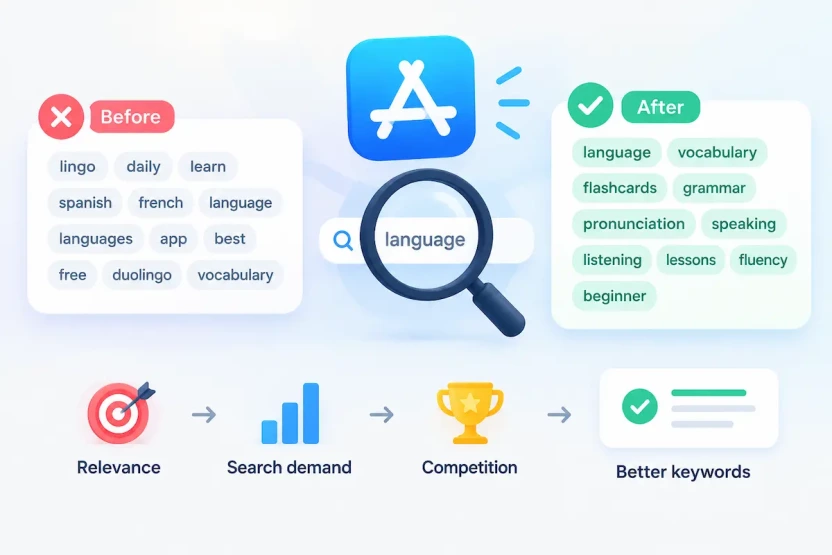
Consider a hypothetical language-learning app, Lingo Daily, with the subtitle Learn Spanish and French. This example is illustrative, not taken from a real app or a live App Store Connect test.
Before (96 bytes):
lingo, daily, learn, spanish, french, language, languages, app, best, free, duolingo, vocabulary
| Issue | Examples | Why it is a problem |
| Formatting | Spaces after commas | Each space uses a byte without adding a keyword |
| Repeats name/subtitle | lingo, daily, learn, spanish, french | Already covered by the app name or subtitle |
| Plural duplicate | language, languages | Apple recommends avoiding plurals when the singular is already included (verify per language and market) |
| Generic or promotional terms | app, best, free | Too broad or promotional, with little clear relevance to specific app features |
| Competitor name | duolingo | Names of other apps or companies aren’t allowed in the Keywords field |
After (96 bytes):
language,vocabulary,flashcards,grammar,pronunciation,speaking,listening,lessons,fluency,beginner
Why it works: Both versions use 96 bytes, but removing spaces after commas and eliminating duplicate or low-value terms frees up room for more specific keywords. The revised list focuses on learning features, content, and user needs rather than generic terms or competitor names. Each term should reflect the app’s actual functionality and be validated against the target market. beginner reflects a plausible search intent, but verify it against your own data.
A rewritten list is a hypothesis, not a guarantee of better rankings. After release, monitor acquisition trends in App Analytics and review Apple Ads search term reports for relevant paid-search terms worth testing in your metadata. This is common ASO practice, not an official Apple recommendation. Refine your keyword list with each update.
How to Localize App Store Keywords for Different Markets
Localizing App Store keywords means choosing terms that users actually search for in each target market, rather than simply translating an existing keyword list. You also need to understand how App Store localizations work and verify that every localized Keywords field meets Apple’s requirements.
Research Each Market Separately
Don’t translate your English keyword list word for word. A direct translation may be accurate but still fail to match how local users search. Build a separate candidate list for each target market using local search suggestions, competitor listings, user reviews in the target language, and input from native speakers. Then apply the same relevance, search demand, and competition filters you used for your primary market.
Keep two concepts apart:
- Localization is a language or regional version of your app’s metadata in App Store Connect, such as English (U.S.), French (Canada), or Japanese. Each localization has its own Keywords field.
- Storefront is the country or region where users access the App Store. A storefront may support multiple localizations, and the language shown can depend on the user’s settings and your available localizations.
Choosing a localization is not the same as choosing a market. Check which localizations Apple supports in each storefront you target. Don’t assume that one language version automatically covers every region where that language is spoken.
A note on cross-localization indexing. Apple states that users can search for apps using localized keywords in storefronts that support the relevant language. It does not clearly document whether keywords in one localization can also match queries in another language within the same storefront. Some ASO practitioners report that certain storefronts index additional localizations, but these are observations rather than Apple-confirmed behavior, and they may change. If you cite a specific case, include the source, the date, and how it was tested.
Treat cross-language matching as a hypothesis, and verify it with your own app and target storefronts before reallocating keyword space.
Validate Keyword Limits for Each Localization
Each localization has its own Keywords field, so check every version separately before submitting:
- Length: Check the UTF-8 byte count of each localized Keywords field.
- Formatting: Check comma placement, unnecessary spaces, and duplicated words within each field.
- Submission result: After saving or submitting, check App Store Connect for validation errors and confirm that the saved text matches your intended keywords.
Different writing systems use different numbers of bytes per character in UTF-8. The examples below show calculated UTF-8 byte counts, not results from a live App Store Connect test:
| Language | Example | Characters | UTF-8 bytes |
| English | planner | 7 | 7 |
| German | übersetzer | 10 | 11 |
| Japanese | 旅行計画 | 4 | 12 |
| Korean | 여행계획 | 4 | 12 |
Because some non-Latin characters use multiple bytes, the same 100-byte limit may fit fewer characters in Japanese, Korean, or Chinese. Prioritize the most relevant terms in each localization rather than trying to keep the same number of keywords across languages.
Never copy a keyword string from one localization to another without checking its relevance, formatting, and byte count.
How to Update Keywords in App Store Connect
Updating App Store keywords requires editing the correct app version and localization. Because Keywords are version-level metadata, changes to an already released version must be submitted with a new app version for review.
Update Keywords for the Correct Version and Localization
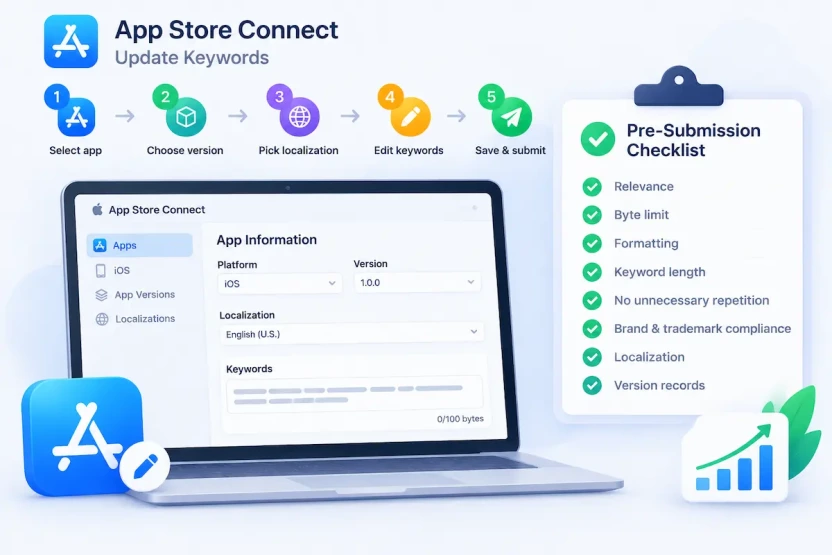
Follow these steps to update your Keywords field in App Store Connect:
- Select your app. Sign in to App Store Connect, open Apps, and choose the app you want to update.
- Open the correct platform version. In the sidebar, select the platform and the editable app version you want to update. If the app is live, create a new version first, since keywords on the live version can’t be edited directly.
- Choose the target localization. Use the language menu to select the localization you want to edit. Each localization has its own Keywords field.
- Edit the Keywords field. Find Keywords under Platform Version Information, replace or refine the existing terms, and check the byte count and formatting.
- Save, then submit for review. Save your changes, make sure a build is selected for the version, and submit it to App Review.
When you create a new version, App Store Connect automatically transfers the current version’s metadata. Review the inherited keywords rather than assuming they are still suitable. Repeat the process for every localization you want to update.
App Store Keywords Pre-Submission Checklist
Before submitting your updated metadata, review each localization against this checklist:
- Relevance: Every keyword accurately reflects the app’s features, functionality, or target users.
- Byte limit: The Keywords field stays within Apple’s 100-byte limit. Check the actual byte count and confirm that App Store Connect accepts the entry.
- Formatting: Keywords are separated by commas, with no unnecessary spaces after commas.
- Keyword length: Each keyword should be longer than two characters.
- No unnecessary repetition: Remove terms already covered by the app name, subtitle, or category, along with redundant or low-value terms.
- Brand and trademark compliance: Remove other apps’ or companies’ names, and review any third-party trademark use for relevance, authorization, and potential App Review issues.
- Localization: Check the keyword list, byte count, and relevance separately for every target localization.
- Version records: Save a copy of each submitted keyword list, including its localization, app version, and submission date, so you can compare performance and track changes later.
Keep a version history of keyword changes, including the terms updated and submission dates. Compare subsequent acquisition trends, but remember that App Store Search includes both organic and search ad traffic. Changes in traffic may also reflect seasonality, ratings, and other metadata updates, so treat them as correlations rather than proof of causation.
FAQs
Can you use spaces in App Store keywords?
Yes, within multi-word phrases. Use commas to separate individual keywords and avoid spaces after commas, since spaces count toward the 100-byte limit. See How to Format Keywords.
Should you repeat keywords from the app name or subtitle?
Generally no. Apple advises against repeating words already in your app name, subtitle, or primary category. Use the space for additional relevant terms. See Which Keywords to Leave Out.
Can you use competitor app names in the Keywords field?
No. Apple explicitly prohibits using the names of other apps or companies in the Keywords field. Other third-party trademark use may also raise App Review issues, depending on the context and whether you have authorization. See Competitor Brand Names and Trademarked Terms.
Do you need to fill the entire Keywords field?
No. 100 bytes is a maximum, not a requirement. A shorter list of relevant keywords is more useful than a full list with weak or repetitive terms. See How to Choose and Optimize App Store Keywords.
Do App Store keywords affect search rankings?
Yes. Apple identifies the app name, subtitle, Keywords field, and primary category as elements of text relevance, alongside user behavior such as downloads, ratings, and reviews. However, it doesn’t disclose the exact weight of each factor. See How the Keywords Field Works in App Store Search.
Follow the Rules, Then Optimize for Relevance
The 100-byte limit is a constraint, not a target. Strong App Store keyword optimization is not about fitting in as many terms as possible. It is about choosing words that accurately reflect your app, match how people search, and give your app a realistic chance to compete.
Start with compliance: check the byte count, formatting, and metadata restrictions, and confirm that App Store Connect accepts each entry. Then refine your keywords for each localization using local search data and native-speaker input rather than direct translations or assumptions. After each update, review acquisition trends and adjust, remembering that trends show correlation, not proof.
Don’t aim to fill every byte. Make every keyword earn its place.