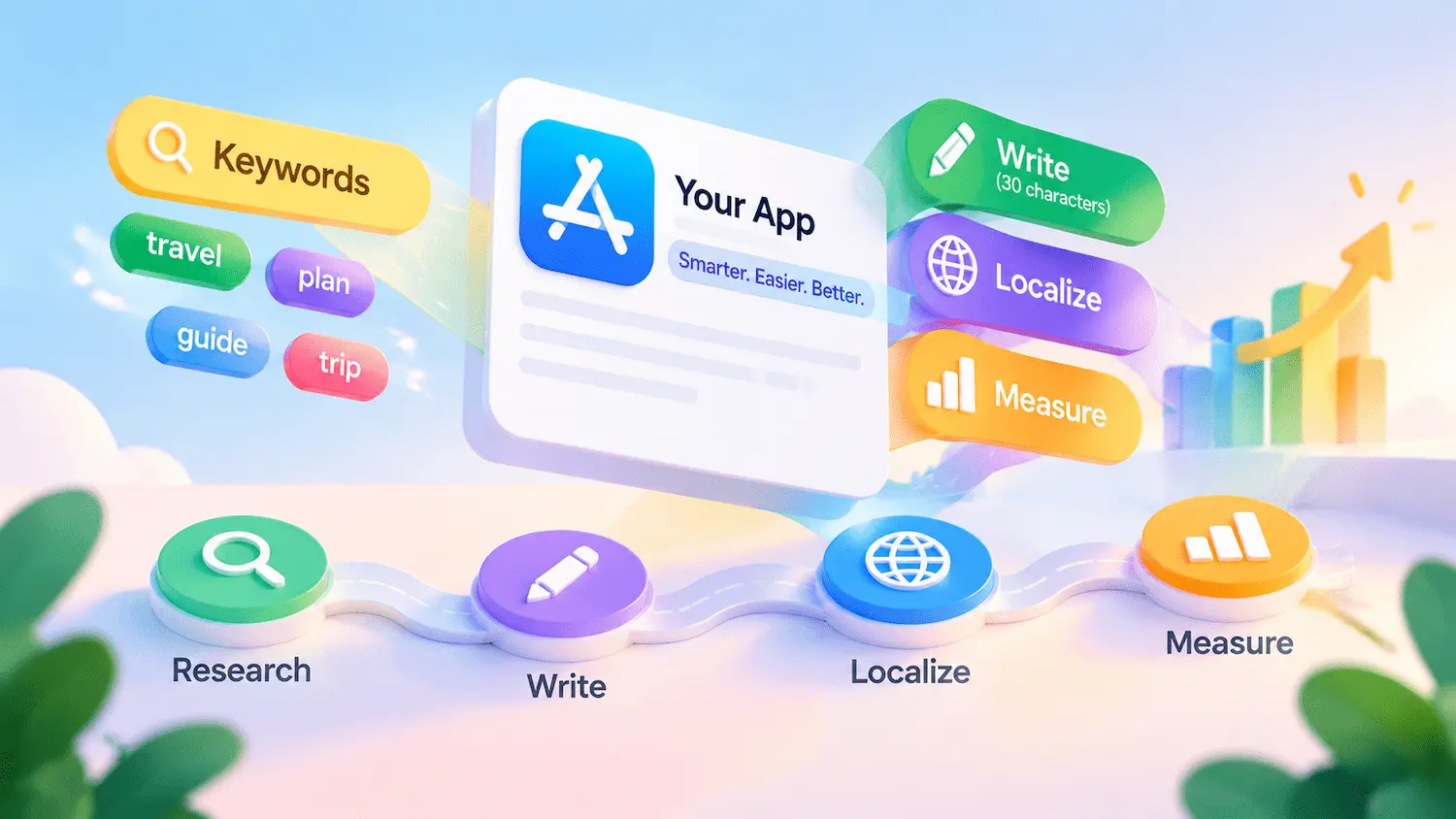


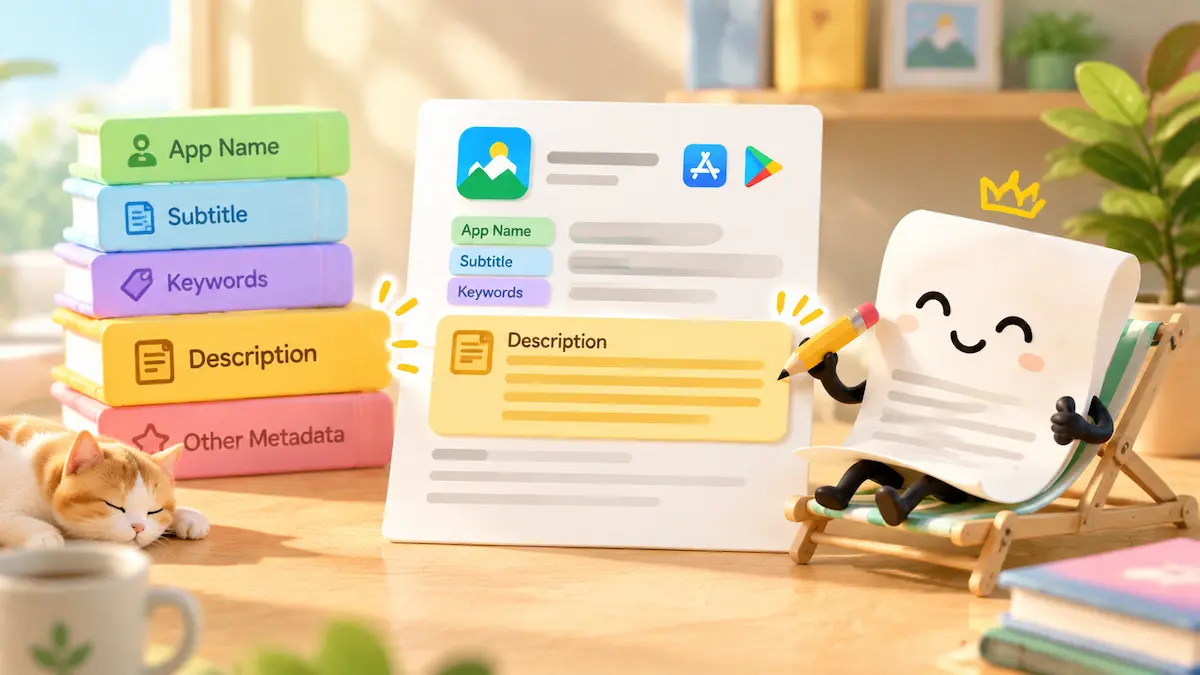
Many developers still stuff keywords into their Apple App Store descriptions, expecting a ranking boost. In practice, keyword relevance in App Store search is primarily shaped by metadata such as your app name, subtitle, and keywords field. The description plays a different role: explaining your app’s value and helping users decide whether to download it. Google Play works differently, so pasting the same copy into both stores often underperforms on both.
This app store optimization description guide explains how to write accurate, easy-to-scan descriptions that follow Apple App Store and Google Play requirements while helping users understand your app’s value. Whether you’re an indie developer, an ASO or growth team, or an agency handling multi-market launches, you’ll get field-by-field limits, writing frameworks, keyword placement, localization steps, and a testing approach you can apply right away.
Throughout this guide, we distinguish official rules documented by Apple and Google, platform data available through their tools and analytics, third-party estimates, and our own recommendations. We identify experience-based advice as recommendations, not official requirements.
Key Takeaways
- Descriptions help users decide. Explain your app’s value rather than relying on keywords alone.
- Optimize for each store. Adapt your copy to platform-specific fields, limits, and policies.
- Give each field a clear role. Separate core value, timely updates, and release notes.
- Lead with what the app does. Connect features to benefits and support every claim.
- Use keywords naturally. Prioritize relevance, readability, and compliance.
- Localize, don’t just translate. Research local keywords and review the copy.
- Measure changes carefully. Use available experiments or before-and-after comparisons, without assuming the copy alone caused the result.
App Store vs. Google Play: Description Fields, Limits, and Search Visibility
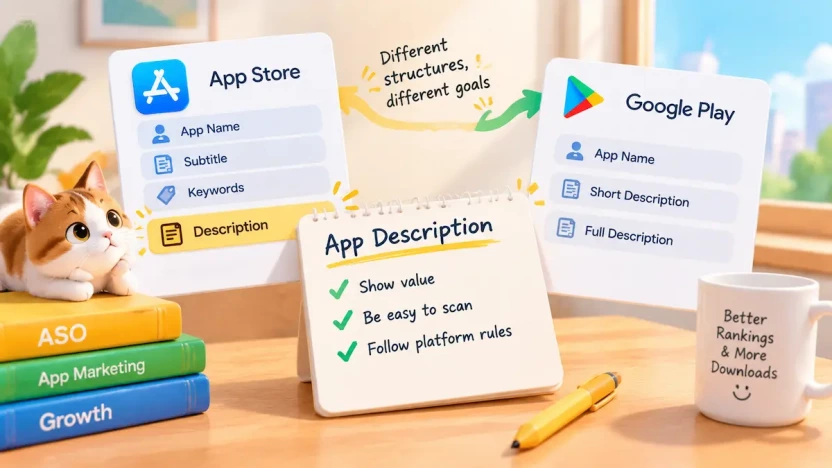
Apple’s App Store and Google Play both rely on store listings to help people find and evaluate apps, but they structure that metadata differently. Apple provides a dedicated, hidden Keywords field; Google Play does not. That difference shapes how each description should be written. Before you draft, check each field’s limit, where it appears, and what the platform’s own guidance says about search visibility.
Description Fields and Character Limits Compared
The table below summarizes the main fields involved in app naming, description writing, and keyword optimization. Check the latest platform documentation before publishing, especially when working with localized metadata.
| Platform | Field | Limit | Primary purpose |
Apple App Store | App Name | 30 characters | Identifies the app and supports in-store discovery |
| Subtitle | 30 characters | Communicates additional value and supports in-store discovery | |
| Promotional Text | 170 characters | Highlights current features, news, or promotions | |
| Description | 4,000 characters | Explains features and benefits to support download decisions; may also appear in web search results | |
| Keywords | 100 bytes | Provides hidden metadata for in-store search matching | |
Google Play | App Name | 30 characters | Identifies the app and supports store discovery |
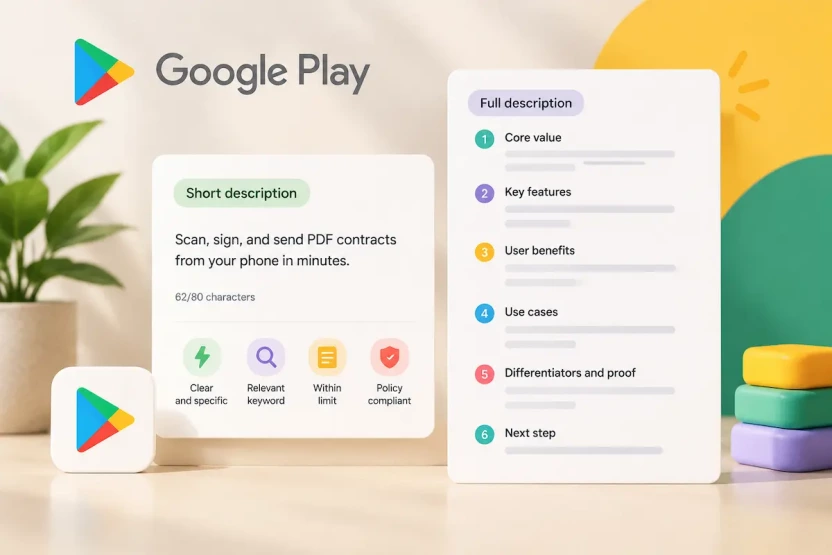
| Short Description | 80 characters | Summarizes the app’s core value and helps users decide whether to install | |
| Full Description | 4,000 characters | Explains features, use cases, and user benefits; also contributes to store-listing relevance |
Apple documentation uses both “100 bytes” and “100 characters” in different places. Verify the current limit in App Store Connect before publishing, and do not assume that a character count always equals a byte count.
What Each Store Uses for Search Visibility
On Apple’s App Store, text relevance is influenced by metadata such as the app name, subtitle, and Keywords field, as well as the app’s primary category. Apple also considers user behavior, including downloads, ratings, and reviews, when ranking search results. Its product page guidance advises developers to choose relevant keywords and avoid adding unnecessary keywords to the description in an attempt to improve search results.
Google Play has a different metadata structure, with no separate hidden Keywords field. Developers work with the app name, short description, and full description. Google’s Metadata Policy requires accurate metadata and prohibits misleading, repetitive, or irrelevant content. Google’s store listing guidance favors clear, accurate descriptions of an app’s purpose and benefits. Because Google does not publish a complete ranking formula for individual description fields, avoid presenting fixed keyword weights as official facts.
Official Content Rules to Check Before Writing
Both Apple and Google Play expect accurate, relevant metadata. Before publishing, check these essentials:
- Accuracy: Ensure every feature, benefit, and claim reflects the actual app.
- Relevance: Avoid keyword stuffing, irrelevant terms, and misleading competitor references.
- Compliance: Follow each platform’s current formatting and metadata policies.
- Field limits: Verify character or byte limits for each field and target locale.
Platform-specific requirements are covered in the following sections.
Writing for the Apple App Store: How to Optimize Your App Description
These app store description guidelines focus on explaining your app’s value, core features, and practical benefits while keeping the copy accurate, easy to scan, and useful to potential users.
How to Structure Your Apple Description
Because the Description is not the primary field for Apple App Store keyword targeting, organize it around the information users need to make a download decision.
- Opening lines: State what the app does and who it is for. Avoid repeating the message in Promotional Text.
- Core features: Group related features by user task and highlight their practical value.
- Use cases: Include one or two realistic examples of how the app is used.
- Supporting proof: Include awards, press coverage, or testimonials only when they are verifiable and relevant.
- Closing: End with a natural invitation to explore the app’s core features.
This is a recommended framework, not an official Apple requirement. Adapt it to your app and audience.
Apple-Specific Formatting and Compliance Rules
- Use plain text. The Description does not support HTML formatting. Use short paragraphs and line breaks to improve readability.
- Avoid specific prices and unsupported claims. Pricing can vary by storefront and change over time. Include awards, rankings, performance claims, or promises only when they are accurate and verifiable.
- Avoid competitor references used to attract search traffic. Keep the metadata focused on your app and its actual functionality.
- Plan updates appropriately. Description changes follow the app version submission workflow in App Store Connect. Use Promotional Text for timely announcements that do not require a new version submission.
- Evaluate changes carefully. Product Page Optimization compares app icons, screenshots, and app previews, not description text. To evaluate a Description change, compare performance before and after publication, and note any other listing changes made during the same period.
Before publishing, verify the latest requirements in Apple’s product page guidance and App Review Guidelines.
How Description Differs From Promotional Text and What’s New
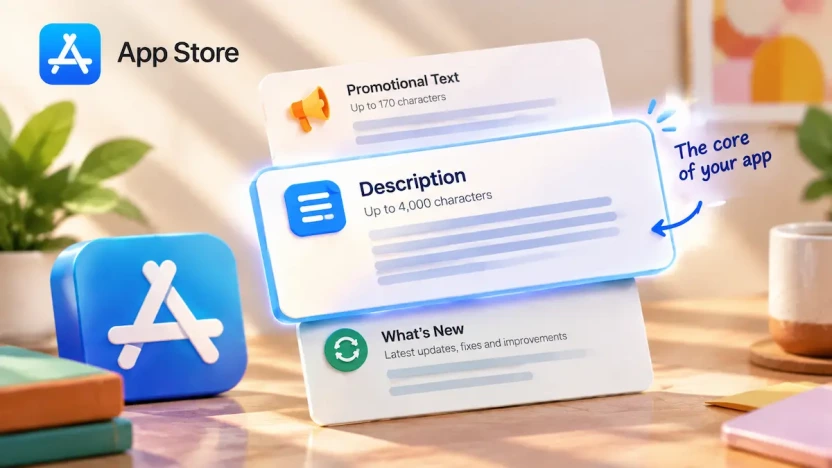
The key difference is purpose: Promotional Text highlights timely updates, such as offers, seasonal content, and newly added features, while the Description explains the app’s features, benefits, and overall value. Apple states that Promotional Text does not affect App Store search ranking, so don’t use it to target keywords.
What’s New is associated with each app release and is written primarily for existing users. Lead with the most useful change and describe meaningful new features or improvements specifically, rather than relying on generic notes such as “bug fixes and improvements.” Keep all three fields distinct, and avoid repeating the same message across them.
Writing for Google Play: Short and Full Descriptions
Google Play gives you two description fields, and they do different jobs. The short description is the line people see first, so it has to explain what your app does at a glance. The full description is where you add detail, context, and proof for people who want to know more.
How to Write an Effective Google Play Short Description Within 80 Characters
The short description has an 80-character limit, so every word needs to earn its place. Lead with what the app does, the main benefit it delivers, or its most compelling feature.
Avoid the habits that waste this space: repeating your app title, using vague slogans, making exaggerated promises, or including promotional wording that Google Play’s Metadata Policy does not allow. Do not turn the short description into a string of keywords, and do not simply copy the first sentence of your full description. The two fields work best when they complement each other.
The examples below are fictional and show three common app types. Character counts include spaces; verify them in your own tools before publishing.
| App type | Example short description | Characters | Why it works |
| Utility (task-focused) | Scan, sign, and send PDF contracts from your phone in minutes. | 62 | Names the task and the practical payoff |
| Game (gameplay-focused) | Build a tiny island city and defend it from sky pirates. | 56 | States the core mechanic and the challenge |
| Subscription service | Guided 10-minute workouts for busy beginners, no equipment needed. | 66 | Names the service, the audience, and a concrete detail, with no result promised |
Check each draft against four questions before you commit to it:
- Can someone tell what the app does at a glance?
- Does it include the most relevant keyword naturally, without stuffing?
- Is it within the current character limit?
- Does it avoid wording the platform prohibits, such as unverifiable rankings or exaggerated promises?
How to Structure the 4,000-Character Full Description
The full description has room for up to 4,000 characters, but length is not the goal. Its job is to expand on the short description with useful detail. A reliable order is:
- Core value. Open by saying what the app does and who it is for.
- Key features. Cover the most important features first.
- User benefits. Explain how each feature helps the person using it.
- Use cases. Show realistic situations where the app is useful.
- Differentiators and proof. Explain what sets the app apart, but only where you can support it with real features, verifiable facts, or properly authorized reviews.
- Next step. Close with a natural invitation to try the core feature.
This is a recommended structure, not an official requirement. Use concise paragraphs and clear section breaks, expand on the short description without repeating it, and include supporting links only when they add value.
How to Write an App Description That Converts
Beyond following each store’s field requirements, effective descriptions need to communicate value clearly and help users evaluate the app.
Write a Strong Opening That Communicates the Core Benefit
Open with the app’s main function and the user problem it solves. Use the before-and-after example below to see how specific wording communicates value more clearly than a generic slogan.
Compare two openings for a fictional travel-planning app:
Before: “Discover a new way to experience the world. Your next adventure starts here.”
After: “Plan your next trip in one place with an itinerary that keeps your destinations, activities, and travel details organized.”
The first version creates a mood but leaves users guessing about functionality. The second explains what the app helps users do and gives them a reason to keep reading.
Google Play’s store listing best practices likewise encourage clear descriptions of an app’s purpose and benefits. Prioritize clarity over any unsupported universal character-count rule.
Turn Features Into Benefits Users Can Understand
For each key feature, explain its practical benefit and show when a user might need it. Use the following example as a guide:
Feature: Save destinations to a trip itinerary.
Benefit: Keep planned places together instead of searching through scattered notes.
Use case: Review the places you want to visit before leaving for a weekend trip.
You do not need all three elements in every sentence. Use the pattern to find the most useful information, then express it naturally. Support claims with real functionality, verifiable facts, or authorized testimonials, and avoid promises such as “the perfect trip every time.”
Structure Your Description for Easy Scanning
Organize the description around users’ questions rather than your development process. Group related features together, use short paragraphs and concise lists, and remove repeated information or background that does not help users evaluate the app.
Follow each platform’s formatting rules. Apple’s description supports plain text and line breaks, not HTML formatting. On Google Play, use simple formatting and follow current metadata policies.
Worked Example: Before-and-After App Description Teardown
This example uses TripPilot, a fictional travel-planning app. Both descriptions are illustrative, and the features are assumed to exist solely for this example.
1. Before: Original Description
TripPilot — Your Journey, Your Way
Travel is more than getting from one place to another. It is about making memories, discovering amazing destinations, and enjoying every moment along the way. TripPilot is here to help you unlock your next adventure and make every journey special.
With TripPilot, you can organize trips, manage destinations, create itineraries, save places, and keep track of your plans. Our powerful planning tools make travel easier and help you stay organized. Whether you are planning a weekend getaway or a longer holiday, TripPilot gives you the tools you need for a better travel experience.
Explore destinations and save your favorite places for later. Build itineraries and organize your travel plans in one convenient app. TripPilot brings everything together to help you plan, organize, explore, and discover.
Travel planning should be simple, convenient, flexible, and enjoyable. Our intuitive features are designed to make planning easy for travelers of all kinds. Download TripPilot and make your next journey unforgettable!
2. After: Revised Description
TripPilot: Travel Itinerary Planner
TripPilot is a trip planner that keeps your itinerary in one place. Save destinations, arrange activities by day, and review your plans before you leave.
Build a Day-by-Day Itinerary
Add the places you want to visit and sort them into days. Planning a weekend city break? Put the morning museum, lunch spot, and evening show in order, then see the whole day at a glance.
Save Places as You Research
Found a restaurant, landmark, or café while reading about your destination? Save it to your trip so it is there when you start filling in your schedule.
Adjust Plans as Your Trip Takes Shape
Move an activity to another day or remove a stop that no longer fits. Your itinerary updates as your plans change, so you always see the current version.
Ready When You Are
Start with a single destination or a full week of activities. Download TripPilot and begin building your itinerary.
3. What Changed and Why
Opening and specificity: The revised version identifies the app’s purpose and core tasks immediately, replacing generic travel slogans with concrete information.
Features and structure: Each section connects a feature to a practical use case, follows the user’s planning workflow, and removes repeated claims.
Accuracy: The example assumes the fictional app supports every feature described. For a real listing, include only verifiable capabilities and benefits; do not promise outcomes the app cannot reliably deliver.
App Description Keywords: Where They Belong
Where you place app description keywords matters as much as which ones you choose through app keyword research. On Apple’s App Store, most keyword work happens in fields other than the description. On Google Play, keywords live inside the text people actually read. This section covers how to choose terms and use them naturally.
Apple App Store: Prioritize the Name, Subtitle, and Keywords Field
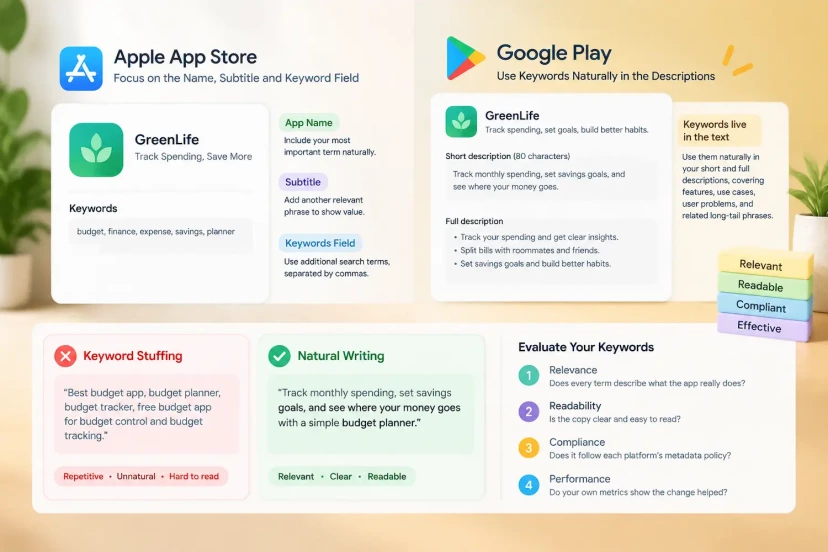
On Apple’s App Store, the app name, subtitle, and Keywords field each have a distinct role. The name identifies your app, and choosing app name keywords well means including your most important descriptive term where it reads naturally. The subtitle adds a short statement of value, and well-chosen app store subtitle keywords give you room for another relevant phrase. The Keywords field is hidden from users and supplies additional search terms. Check the current limit and unit in App Store Connect, since a character count does not always equal a byte count, and non-Latin characters can use up space faster than you expect.
Apple recommends separating keywords with commas and avoiding unnecessary repetition. Its App Store search guidelines advise using relevant terms that accurately describe your app, avoiding duplicate words, irrelevant terms, and competing app names. Use the Keywords field to add useful search terms not already covered by your app name or subtitle, and choose app store optimization keywords based on how users search rather than how your team describes features. Ensure every term is relevant and complies with Apple’s metadata rules.
Distinguish App Store search from web search. The app name, subtitle, Keywords field, and primary category contribute to in-store search relevance, while the description may also appear in web search results. Apple does not publish a fixed ranking formula, so treat third-party estimates of field weighting as hypotheses.
Google Play: Use Keywords Naturally in the Short and Full Descriptions
Use the short description for your core value and a primary relevant term. Expand keyword coverage in the full description through feature explanations, use cases, and related search phrases.
The full description can carry broader vocabulary. Build it around features, use cases, user problems, and related long-tail phrases. A budgeting app, for example, might naturally cover “track monthly spending,” “split bills with roommates,” and “set savings goals.” These phrases describe real tasks and introduce related terms without forcing repetition.
Some third-party sources suggest that the opening lines carry extra ranking weight, but Google has not confirmed a fixed weighting. Treat this as a hypothesis, not an established rule.
Keyword Density and Keyword Stuffing
Neither Apple nor Google Play publishes an official keyword-density target. Focus on relevance, readability, and compliance when choosing your ASO keywords, rather than chasing a fixed percentage.
The difference between natural writing and keyword stuffing is easy to see (examples are illustrative only):
| Approach | Example |
| Stuffed | “Best budget app, budget planner, budget tracker, free budget app for budget control and budget tracking.” |
| Natural | “Track monthly spending, set savings goals, and see where your money goes with a simple budget planner.” |
The natural example covers related search concepts without repeatedly forcing the same keyword into the copy.
Instead of chasing a percentage, evaluate your copy on four dimensions:
- Relevance: Does every term describe what the app really does?
- Readability: Is the copy clear and easy to read?
- Compliance: Does it follow each platform’s metadata policy?
- Performance: Do your own metrics show the change helped?
ASO keyword research tools can help identify candidate keywords, estimate search popularity, and track rankings. Treat estimated metrics as directional indicators, and evaluate each keyword against your app’s features, relevance, and target users.
App Store Description Translation Guidelines: Localization Best Practices
App store description translation guidelines should go beyond literal translation to address how people in each target market search, what they value, and how they describe their needs. Effective localization preserves the product’s real benefits while making the copy relevant to local users.
Translation vs. Localization for App Store Optimization
Translation preserves the original meaning, while localization adapts the message to local language, search behavior, and user expectations. A grammatically correct translation may still miss the terms local users search for or the benefits they value.
Research keywords separately for each target market instead of translating the source-language list word for word. Adapt wording and examples to local usage, but keep product features, pricing conditions, and claims accurate.
A Practical Workflow for Localizing App Descriptions
A repeatable workflow helps teams maintain quality across languages without losing product accuracy.
- Confirm the target locale and field limits. Check the store, locale, and current limit for each metadata field. Do not assume every language version uses identical settings.
- Create a source-of-truth brief. Document the app’s core value, supported features, approved claims, brand terminology, and any conditions that must stay unchanged.
- Research local keywords. Identify how users in the target market describe their needs, rather than translating keywords word for word. For selection principles, see App Description Keywords: Where They Belong.
- Generate a first draft. Use AI for a first draft or alternative phrasings, with the product brief as input, and treat the output as a draft rather than a final translation.
- Review with a qualified local linguist. Ask someone familiar with the market to check naturalness, cultural fit, and tone.
- Run a final quality check. Verify character counts, punctuation, line breaks, brand terms, factual claims, and compliance with each store’s current metadata rules.
- Monitor and refine. Review available performance metrics and user feedback, then update the copy when search behavior, results, or product features change.
Here is an illustrative example. An English budgeting app might use the message “Track expenses and build better money habits.” A Spanish-language version could say “Controla tus gastos y organiza tu dinero día a día” (“Track your expenses and organize your money day to day”). The localized line is not a word-for-word match of the English: it uses phrasing a Spanish-speaking user might plausibly say, and the choice between terms such as “gastos” and “presupuesto” should come from local keyword research, not assumption. Spanish usage also varies by country, so confirm the wording for your target storefront and check it against the app’s actual functionality. This is not a universal translation recommendation.
Platform-Specific Localization: iOS and Google Play Metadata
Apple lets developers configure localized metadata in App Store Connect, including descriptions and keywords. According to Apple’s localization guidance, the metadata users see depends on factors such as available localizations, device language settings, and the App Store storefront. If no localization matches a user’s language, another relevant localization may be displayed. This means adding a translation does not guarantee identical search coverage in every region, so confirm which localizations apply to your target storefronts and review the fields set for each. Apple’s App Store localization reference lists supported languages and locales.
Google Play also supports localized store listings. You can add translations for the app title, short description, and full description in Play Console, and its translation and localization guide explains how to apply localized text and graphic assets. If you need different messaging for different countries or regions, consider custom store listings rather than relying on language localization alone.
Claims about language indexing across storefronts should be verified against reliable evidence and the applicable locale. Prioritize local keyword research, correct metadata configuration, and performance measurement rather than assuming one translation covers every market.
How to Test Description Changes and Evaluate Results
A description is only one part of a store listing, so assess its impact using each platform’s available metrics while accounting for other metadata changes, traffic sources, and market conditions.
ASO Metrics Worth Tracking
Track metrics for both visibility and conversion, using each platform’s own definitions because reporting methods may differ.
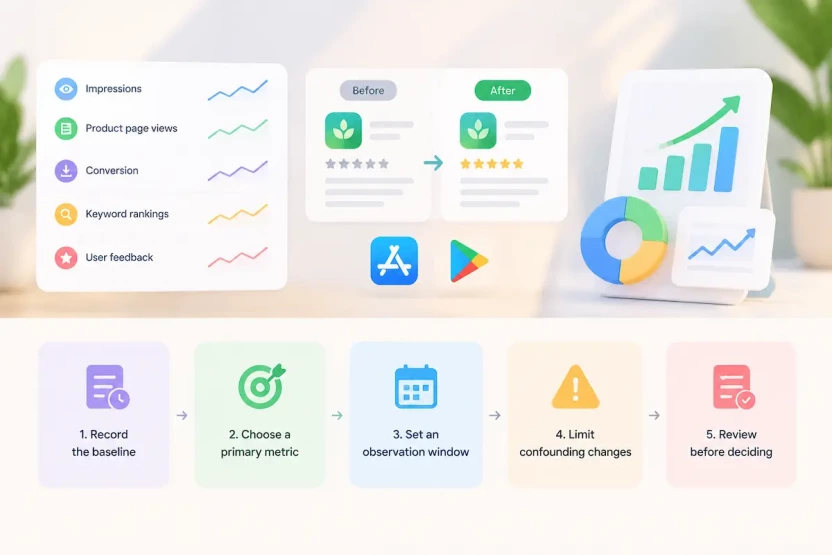
- Impressions: Use each platform’s reported impression metrics to monitor listing visibility. Available surfaces and reporting definitions may differ, and an increase does not mean the description caused it.
- Product page views: Monitor how many users reach the listing. This helps distinguish changes in incoming traffic from changes in what happens after users arrive.
- Conversion to downloads or installs: Use the conversion metric available in each platform’s reporting tools, and confirm its definition before comparing results across platforms or periods.
- Keyword rankings: Track your position for specific search terms, separately from overall impressions. Third-party ranking data can reveal trends but does not replace platform-reported performance.
- User feedback and product updates: Record relevant user feedback and feature releases that could affect how users respond to the listing.
Interpret metrics together. A rise in product-page views without a matching rise in conversion may reflect a change in traffic source or quality rather than a weaker listing, so check the traffic mix before rewriting the description.
Before-and-After Comparisons vs. Native Experiments
The right testing method depends on the platform and which elements its native tools support.
Apple App Store. Apple’s Product Page Optimization lets you compare alternate app icons, screenshots, and app previews against your default product page. Description text is not a test variable, so a description change cannot be tested natively. Evaluate it by comparing performance before and after publication, while accounting for other listing changes. Check App Store Connect for any changes to the available options.
Google Play. Store listing experiments in Play Console are the native testing option. Third-party sources report that they can test the short and full description in addition to graphic assets such as the icon, feature graphic, screenshots, and promo video; confirm the supported fields and current setup in the Play Console documentation before planning a test. If the field you want to change is not supported, compare performance before and after the change and document other factors that may have influenced the outcome.
A practical evaluation workflow
- Record the baseline. Save the original description, the proposed changes, the publication date, and relevant performance metrics.
- Choose a primary metric. Define what success means, such as improved listing conversion. Use visibility, keyword rankings, and user feedback as supporting evidence where relevant.
- Set an observation window. Choose a period appropriate to traffic volume, market differences, seasonality, and the scale of the change. Four to six weeks may be useful in some cases, but it does not guarantee statistical confidence.
- Limit confounding changes. Avoid changing several major listing elements at once. If that is unavoidable, document the changes and interpret results cautiously.
- Review before deciding. Keep the new version, revise it, or continue monitoring based on the overall pattern, not a single metric.
A before-and-after comparison can reveal useful patterns, but it cannot prove that the description alone caused the outcome.
App Description Optimization Checklist
Use this checklist before publishing or updating your app description.
FAQs
Does App Store Description Optimization Affect Rankings?
Partly, and it depends on the platform. On Apple’s App Store, the app name, subtitle, and Keywords field are the main in-store keywords field; the description is not the primary one. On Google Play, the full description contributes to store-listing relevance, so natural keyword use there can matter. In either store, don’t credit a ranking change to a copy update alone.
How Long Should an App Store Description Be?
Apple allows up to 4,000 characters. Google Play allows up to 80 characters for the short description and 4,000 for the full description. These are maximums, not targets; prioritize clarity and useful information.
Should I Use the Same Description on Apple App Store and Google Play?
Keep product facts and core benefits consistent, but adapt the copy to each platform’s fields, limits, keyword considerations, and policies.
Can I Use AI to Translate My App Description?
Yes. AI can help draft translations and suggest alternative wording, but the final copy should be checked for accuracy, local keyword relevance, natural phrasing, field limits, and policy compliance. For important markets, use a qualified local reviewer.
Write for the Person Who Just Arrived
The keywords field, subtitle, and app name help people find you. The description helps them decide.
Explain what your app does in the opening lines. Support your claims with specifics. Cut slogans that could describe any app. Then measure results honestly: don’t credit your copy for every good week or blame it for every bad one. A keyword gets you into the room. The description is what you say once you’re there.